序章
中文 | English
下文將用“本書”來代指“本手冊”。
宣告
對於普通使用者來說,本專案自身沒有任何價值。
本書亦是如此。
這裡沒有輕小說中“劍與魔法”的奇幻異世界冒險歷程, 更沒有《詩經》中“墮山喬嶽,允猶翕河”般遼闊壯美的風景。
有的只是無聊透頂的內容。
對於非普通使用者來說,它的價值主要取決於使用場景。
在本章的“使用場景”中,我們將簡單介紹相關內容。
若在同一場景下,存在更優的替代品,那麼您不妨敞開胸懷,給本專案多提幾個 issues。
或許有一天,世界會變得更加美好呢!
除了 android 外,對於某些功能或工具,本專案的開發者若未將其打成包(例如 deb 包),並且未在本書中對其進行詳細解析,那麼只建議您在容器中使用。
對於 android, 請翻閱 “容器/android”。
old-version 的內容會被新版所替代,新版將會放在 dev 分支。
Trust us. 未來會更好的!
如何閱讀這本書
在閱讀本書時,您需要了解的內容。
本頁面由 mdbook 生成。
- 左上角的三條槓 "≡"
- 點選三條槓開啟目錄
- 頁面最下方的評論區
- 您可以使用 github 帳號登入,您發表的內容將與 "github discussions" 保持同步。
- 同理,如果您在 discussions 中找到當前章節的討論頁面,並在裡面發表內容,那麼相關內容也會同步到下方的評論區。
- 左上角的畫筆 "🖌️"
- 先點選畫筆,再選擇主題,最後完成切換
- 左下角的 "<" 符號
- 點選 "<" 跳轉到上一頁
- 右下角的 ">" 符號
- 點選 ">" 跳轉到下一頁
如果您的網頁(螢幕)顯示空間足夠寬,那麼"<" 和 ">" 將位於中間,而不是下方。
使用場景
本專案存在的意義:
- 在合適的場景下,您使用本專案去做一些有趣或有意義的事情。
對您來說有意義的事情,對本專案而言,亦是如此。
You can do something interesting or meaningful.
有意義與否
有意義與否並非如 bool 型別那般非 true 即 false。
它是相對的,而非絕對。
在這裡我們並不想深入去探求哲學問題,簡而言之,這個問題的答案因人而異,沒有絕對的標準。
問題:什麼是意義不大的事情呢?
假設存在以下兩個場景:
- 1.您在 arm64 裝置上模擬 x64 環境,然後在上面打!遊!戲!
- 2.您在 arm64 裝置上遠端連線到 x64 windows 裝置,然後執行 windows x64 平臺的遊戲。
前者花了一小時,而後者花了五分鐘。
主觀回答 1: 前者可能是有趣的,但是意義相較於後者而言,可能沒有那麼大。
時間是很寶貴的,我希望大家能把時間花在更有意義的事情上,而不是浪費時間。
主觀回答 2: 我既沒有電腦,也租不起 x64 虛擬專用伺服器,更玩不起雲遊戲,在手機上體驗 windows 遊戲讓我感受到了快樂,我認為這是值得的,並且是有意義的。
在下文中,我們將會假設幾個場景,您可以對其進行評價,判斷其是否有意義。
android 、圖書館與 LaTex
- 地點:圖書館
- 裝置:android 手機/平板 (無 root)
- 條件:無網路,或網路狀態不佳 (網速很慢)
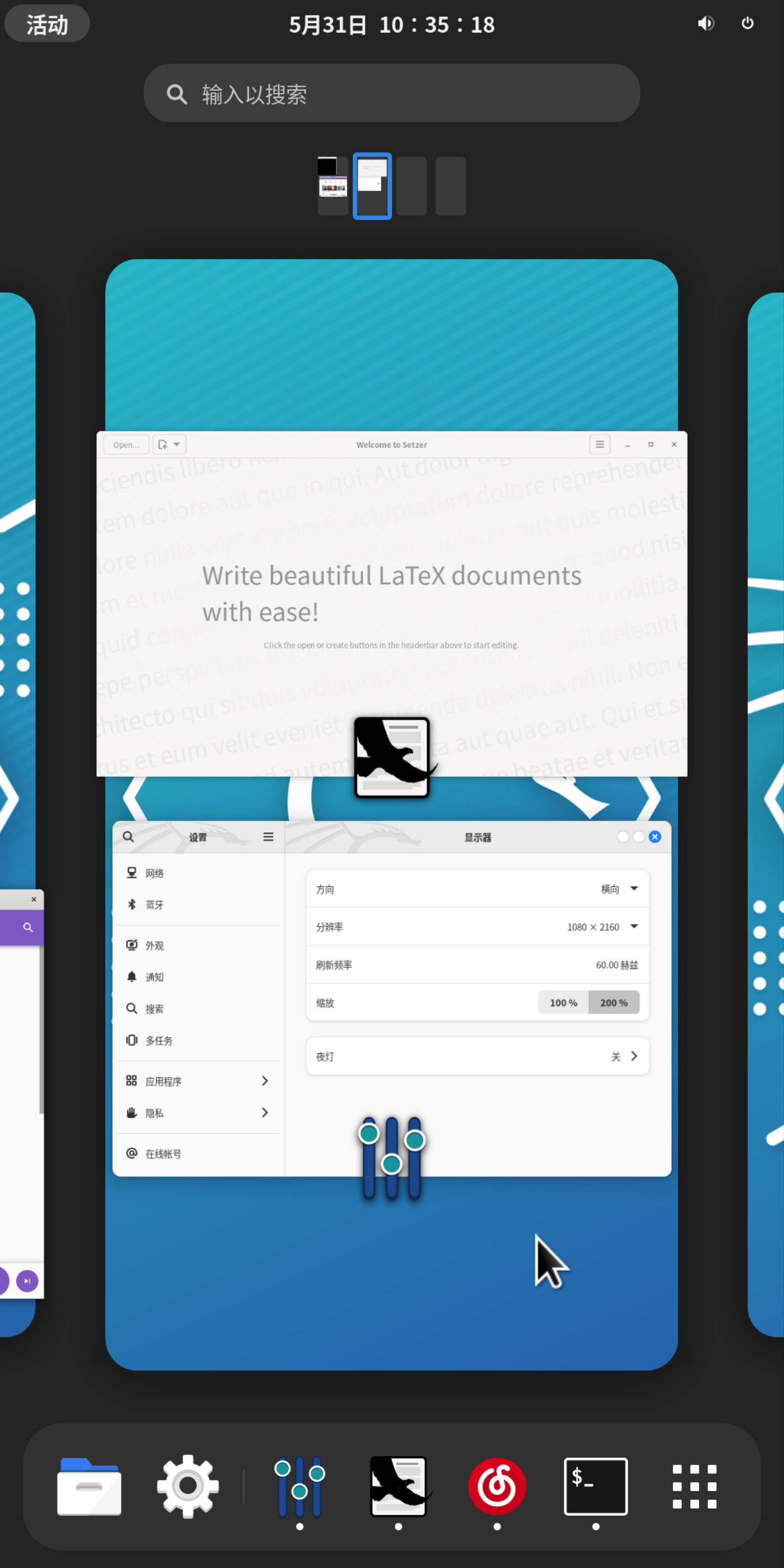
- 描述:您在圖書館裡,帶著 android 手機/平板,在離線環境下,執行 gnome + LaTex 環境(texlive-full) + LaTex 編輯器,在上面用 LaTex 編輯器寫文章/排版。
iOS、旅館與 manjaro+goland
- 地點:旅館、酒店、餐廳、銀行或電信營業廳(等網路良好的場所)
- 裝置:iPhone/iPad (或其他帶有瀏覽器的裝置)
- 條件:網路環境優秀(至少要良好)
- 描述:您出門在外,只帶了 ios 裝置。可是您做夢都想要用
idea,clion和goland。
github 的 codespace (線上版 vscode) 可以執行不同的環境,於是您將 tmoe 的 gui 容器直接作為 codespace 的 devcontainer。 在上面跑 gui (xfce), 再跑 goland。
在 vscode 上跑 jetbrains goland, 這何嘗不是一種 PV 呢?關於 PV 的說明,詳見本章的“題外話”。
- 教程:
- 說明:
- 截至 2022-06-15, github 官方並沒有提供基於 manjaro 的 xfce 環境(容器映象)。
- 儘管 github 的 codespace (vscode)外掛自帶了生成配置的功能,但是之後本專案開發者可能會寫個類似功能的小工具。從而讓大家更省心一點。
- 準備:
- 您擁有一個支援 codespace 的 github 賬號
- 若顯示區域不夠寬,則您可能需要將瀏覽器(如 safari)切換為桌面版網站(檢視)
- 開始:
- 成功連線到 codespace 後,開啟 vscode 內建終端,並在專案目錄下執行以下操作
- 說明:
mkdir -p .devcontainer
cd .devcontainer
cat >devcontainer.json<<-'EOFJSON'
// For format details, see https://aka.ms/devcontainer.json.
{
    "name": "Manjaro",
    "dockerFile": "Dockerfile",
    "runArgs": [
        "--cap-add=SYS_PTRACE",
        "--security-opt",
        "seccomp=unconfined"
    ],
    // "mounts": [
    //     "source=dind-var-lib-docker,target=/var/lib/docker,type=volume"
    // ],
    "mounts": [
        "source=/var/run/docker.sock,target=/var/run/docker.sock,type=bind"
    ],
    "overrideCommand": false,
    // Configure tool-specific properties.
    "customizations": {
        // Configure properties specific to VS Code.
        "vscode": {
            // Add the IDs of extensions you want installed when the container is created.
            "extensions": [
                // "MS-CEINTL.vscode-language-pack-zh-hans",
                "ms-azuretools.vscode-docker"
            ]
        }
    },
    // Use 'forwardPorts' to make a list of ports inside the container available locally.
    "forwardPorts": [
        5902
    ],
    // Use 'postCreateCommand' to run commands after the container is created.
    // "postCreateCommand": "docker --version",
    // Comment out to connect as root instead. More info: https://aka.ms/vscode-remote/containers/non-root.
    // "build": {
    //     "args": {
    //         "ENABLE_NONROOT_DOCKER": "false"
    //     }
    // },
    "remoteUser": "ddk"
}
EOFJSON

cat > Dockerfile<<-'EOFDKF'
# syntax=docker/dockerfile:1
#---------------------------
# FROM cake233/manjaro-zsh-amd64

FROM cake233/manjaro-xfce-amd64

# set username & group
ARG USERNAME=ddk
ARG GROUPNAME=ddk
# ARG USER_UID=1001
# ARG USER_GID=$USER_UID

# rm cn mirrorlist
RUN sed -e '/bfsu.edu.cn/d' \
    -e '/tuna.tsinghua.edu.cn/d' \
    -e '/opentuna.cn/d' \
    -i /etc/pacman.conf

# install dependencies
# live server: https://docs.microsoft.com/en-us/visualstudio/liveshare/reference/linux#install-linux-prerequisites
RUN pacman -Syu \
    --noconfirm \
    --needed \
    base \
    base-devel \
    git \
    lib32-gcc-libs \
    lib32-glibc \
    gcr \
    liburcu \
    openssl-1.0 \
    krb5 \
    icu \
    zlib \
    gnome-keyring \
    libsecret \
    desktop-file-utils \
    xorg-xprop \
    xdg-utils

# locale: Chinese Simplified (China)
ENV LANG=zh_CN.UTF-8

# add new user
RUN groupadd --force ${GROUPNAME} \
    && useradd --create-home --gid ${GROUPNAME} ${USERNAME} \
    && mkdir -p /etc/sudoers.d \
    && echo "${USERNAME} ALL=(ALL) NOPASSWD:ALL" > /etc/sudoers.d/ddk \
    && chmod 400 /etc/sudoers.d/ddk

WORKDIR ["/home/$USERNAME"]

# clean cache
RUN yes | pacman -Scc; \
    rm -rf /var/cache/pacman/pkg/* \
    /tmp/* \
    2>/dev/null

# command: sleep infinity
CMD [ "sleep", "inf" ]
EOFDKF
rebuild:
- 1.按下 F1 或 Ctrl+Shift+P 或 cmd+shift+p
- 2.搜尋 rebuild
- 3.選擇 Codespaces: Rebuild container
您也可以手動選擇“遠端資源管理器”,再選擇 Codespace, 最後點選 rebuild container 的 圖示。
ddk可以修改為其他使用者名稱。 關於上述命名的來源,詳見“題外話”
關於 vnc
進入了 codespace 環境後,在內建終端裡執行以下操作
- 執行
tmoe - 先選擇語言環境,再選擇 tools
- 接著選 software, 然後選 dev
- 安裝 goland, clion 或其他 IDEs
- 退出 tools
由於此容器映象已經預裝了 xfce, 因此您無需重複安裝。
對於網頁連線的 codespace:
- 執行
novnc,設定密碼 - 開啟埠轉發處的
36080對應的 local address
對於本地 vscode 連線的 codespace:
- 執行
startvnc - 開啟 vnc 客戶端,輸入本地 vnc 地址(預設是 127.0.0.1:5902)。
其他場景
序章中描述的內容是有限的,更多內容分佈於本書的其他章節。
對於其他場景,例如:您想要使用 github actions 來編譯不同架構的軟體,那麼可以去看看 “容器/docker”。
題外話
注意:
題外話對您來說,可能是沒有意義的,甚至有可能會引起您的反感。
開發者建議您開啟目錄,並跳轉至其他章節。
Q: 為什麼是 ddk
A: 有個叫 ddk 的使用者,給本專案提了個與 codespace 相關的 issue, 於是他就“青史留名”了。
( ̄ ▽  ̄)
其實非本專案相關的 Issue 發在 discussions 裡會更好。
Q: 什麼是 PV
A: 這是理想氣體狀態方程。
PV=nTR
- 解析:
- P: 壓強
- V: 氣體體積
- n: 物質的量
- T: 熱力學溫度
- R: 氣體常數
您可能不知道的冷知識:
2moe 之前在某個漫畫網站上,看到過一本漫畫,它的標題是 《wopd ybww bwpy qmbw PV levl, soyi yeyc PV qmbwde nvpgyz》
哎呀,這孩子物理應該學得還不錯吧!
這只是標題吸引人而已,好孩子不要去看。
倉庫
Welcome to TMOE.
在瞭解完本專案的應用場景後,不知您是否會對本專案感興趣呢?
在本章中,我們將瞭解以下內容。
- 新增倉庫
- 透過軟體倉庫來安裝本專案自身,以及其他的工具。
- 映象源
- 為世界上大多數國家和地區的 debian/ubuntu 使用者提供更優秀的服務。
新增倉庫
1. 快速上手
注意:
目前,儘管本專案相關倉庫已經搭建完成,但是絕大多數軟體包仍處於未完成狀態。
之後,本專案的相關包名將可能會被命名為 tmoe-2021, tmm 和 tmoe
1.1. apt
1.1.1. debian

- 系統要求
- 支援
- Debian GNU/Linux
- 目前支援的最低版本為 Debian 9 Stretch
- 由於 Stretch 已經 EOL, 之後最低版本可能會升級至 Buster
- Debian GNU/Linux
- 不支援
- Debian GNU/Hurd 和 kFreeBSD
- 支援
su -c "apt update; apt install doas curl"
su -c "echo 'permit nopass $(id -un) cmd apt' >> /etc/doas.conf"

curl -LO https://l.tmoe.me/neko.deb
doas apt install ./neko.deb
rm -v neko.deb
doas apt update
doas apt install toy-repo
在題外話中,本專案開發者將介紹:為什麼是 OpenBSD
doas而非sudo
1.1.2. ubuntu

sudo apt update
sudo apt install -y wget
wget l.tmoe.me/neko.deb
sudo apt install ./neko.deb
rm -v neko.deb
sudo apt update
sudo apt install uuu-repo
1.1.3. termux

File: termux.svg
License: CC BY-SA 4.0
Origin: Termux.com - https://termux.com/
curl -LO l.tmoe.me/tinor.deb
apt install ./tinor.deb
apt update
1.2. pacman

開發者還在咕咕咕中 ...
2. Debian-based (ubuntu, mint, kali)
從理論上說,您不應該混用 debian 和 ubuntu 的軟體源。
因為這會破壞系統的依賴關係。
您如果之前一直都是這麼幹的,那麼需要多瞭解一下 debian。
您可以閱讀 debian 參考手冊(Osamu Aoki 青木修 著)。
2.1. 通用
那麼問題來了。
既然混用源的問題這麼嚴重,那為什麼本專案還是有通用倉庫呢?
答案是:
- 靜態編譯
- 低版本依賴
- 以及 "all" 架構的軟體包。
實際上,對於不能通用的包來說,開發者會為它們建立單獨的倉庫。
對於 debian-based 發行版來說,本專案通用的倉庫名為 "neko"。
2.1.1. 詳細說明
-
要求:
- 系統版本: debian 9 (stretch) & ubuntu 16.04(xenial)
- 依賴:
apt-transport-https,ca-certificates
- 依賴:
- 系統版本:debian 10 (buster), ubuntu 18.04 (bionic) 及其以上的系統
- 依賴:
ca-certificates
- 依賴:
- 系統版本: debian 9 (stretch) & ubuntu 16.04(xenial)
以下例子將使用 curl
您也可以換用其他下載工具,例如 wget2 或 aria2
以下內容可以直接編輯
apt update
apt install -y curl

# 下載並安裝 tmoe 的 neko 倉庫
curl -LO https://l.tmoe.me/neko.deb
apt install ./neko.deb
# 這個 deb 包對您的系統做了什麼呢?
# 在 /etc/apt/sources.list.d/ 目錄下建立了源列表:
# neko-repo.sources (許可權為644,所屬為0:0)
# 在本書的換源部分將介紹這種格式
# 還有 OpenPGP(GnuPG) 公鑰:
# /usr/share/keyrings/tmoe-archive-keyring.gpg (許可權同上)
# 並且在 /etc/apt/preferences.d/50-neko-repository 中調整了軟體包優先順序
# 注:此 deb 包不依賴 gnupg(完整版), 只需要 apt 自身依賴的 gpgv(簡化版gnupg) 就可以了

# 刪除 deb 包
rm -fv ./neko.deb
# 更新索引資訊
apt update
2.1.2. neko-repo 詳情
apt show neko-repo
Package: neko-repo
Version: 0.0.1-12
Priority: standard
Section: misc
Maintainer: Moe Master <m@tmoe.me>
Installed-Size: 30.7 kB
Provides: set-src-list, update-neko-key
Depends: apt (>= 1.1.0)
Recommends: ca-certificates
Suggests: curl | wget
Homepage: https://packages.tmoe.me/deb/dists/neko/
Download-Size: 5,232 B
APT-Manual-Installed: yes
APT-Sources: https://packages.tmoe.me/deb neko/main amd64 Packages
Description: Neko repository, QwQ
  It includes some useful packages.
  The minimum supported version of this repository is debian 9 (Stretch),
  you should not install it on debian 8 (Jessie).
讓我們來看一下 neko-repo 提供了什麼東西
set-src-list- 我們將會在“倉庫/更換映象源”中介紹到它
update-neko-key- 用於更新公鑰
2.1.3. 更新公鑰
在極其特殊的情況下,neko 倉庫的 OpenPGP 公鑰可能會失效。
在這種情況下,您就不能用 apt-get install 來更新 neko 倉庫的 keyring 了,而要用 neko-repo 自帶的一個命令。
執行
update-neko-key
它會輸出以下內容
It can update the OpenPGP pub keyring: "/usr/share/keyrings/tmoe-archive-keyring.gpg"

-d | --downloader: You can specify the downloader.

For example, you can run "update-neko-key -d curl" to use curl.
Run "update-neko-key -d wget" to use wget.
簡單來說,您需要手動指定一個下載器。
現在只支援
curlwgetwget2aria2c
用法很簡單,以 root 身份執行 update-neko-key -d curl。
如果沒有 root 許可權,那麼它將無法修改 "/usr/share/keyrings/tmoe-archive-keyring.gpg"。
這個工具的邏輯非常簡單。
- 若您的系統已經安裝了
gnupg,那麼它將從相關倉庫獲取 ascii 格式的 OpenPGP 公鑰,並將其轉換為二進位制格式,最後覆蓋原來的公鑰。 - 若您的系統沒有安裝
gnupg, 或者轉換過程出錯了,那麼它將直接從相關網站獲取二進位制格式的公鑰。
如果沒有意外的話,您可能十年都不需要呼叫此命令去更新公鑰。
至於開發者能不能為本專案用愛發電十年就是另一回事了。
2.2. toy-repo
與 neko-repo 不同,toy-repo 並非完全通用的。 它只能給 debian 用,不能給 ubuntu 用。
2.2.1. 詳情
apt show toy-repo
Package: toy-repo
Version: 0.0.1-4
Priority: optional
Section: misc
Maintainer: Moe Master <m@tmoe.me>
Installed-Size: 19.5 kB
Depends: apt (>= 1.1.0), neko-repo
Suggests: ca-certificates
Homepage: https://packages.tmoe.me/deb/dists/toy
Download-Size: 2,484 B
APT-Manual-Installed: yes
APT-Sources: https://packages.tmoe.me/deb neko/main amd64 Packages
Description: A repository for debian only
  Toy is a wonderful thing.
  Let's keep our childishness and optimism!
  Go after the good things in the toy-repo!
  The source file will be placed in "/etc/apt/sources.list.d/toy-repo.sources"
遺憾的是,toy-repo(玩具倉庫)自身並沒有什麼有用的東西。
有用的東西都在倉庫裡面,您需要以 root 身份執行 apt install 來安裝您心儀的玩具。
玩具是一個很美好的東西,開發者將其命名為 toy,並沒有抱著做“玩具專案” 這種消極的想法。
與 debian 的 玩具總動員系列的代號類似。
保持童真,以及積極向上的態度是非常重要的。
toy 這個詞還包含了開發者對美好生活的嚮往。
這個世界是非常複雜的,像孩童一樣追求著簡簡單單的快樂是一件非常非常幸福的事情。
2.3. uuu-repo
與 neko-repo 和 toy-repo 都不同。
uuu 倉庫只能給 ubuntu 用,不能給 debian 用。
2.3.1. 說明
uuu 倉庫對於 ubuntu 來說是通用的。
本專案之後可能還會有 "focal-repo" 這種只能給單獨的版本使用的倉庫。
3. Android
3.1. termux
3.1.1. tinor
TINOR Is Not Official Repository.
把軟體包拆出來,看看裡面有什麼東西吧!
├── control
│   ├── conffiles
│   ├── control
│   ├── md5sums
│   ├── postinst
│   └── postrm
└── data
    └── data
        └── data
            └── com.termux
                └── files
                    └── usr
                        ├── bin
                        │   ├── set-src-list
                        │   └── update-tinor-key
                        ├── etc
                        │   └── tmoe
                        │       └── repo
                        │           └── apt
                        │               ├── preferences.d
                        │               │   └── 50-tinor
                        │               └── sources.list.d
                        │                   └── tinor.sources
                        └── share
                            ├── doc
                            │   └── tinor-repo
                            │       ├── changelog.Debian
                            │       └── copyright
                            └── keyrings
                                └── tmoe-archive-keyring.gpg
在安裝 deb 包,執行 postinst 的 configure 階段時, postinst 會在 $PREFIX/etc/apt/sources.list.d 和 $PREFIX/etc/apt/preferences.d 處建立與 tinor 相關的軟連結;
解除安裝軟體包,執行 postrm 的 purge 或 remove 階段時,postrm 會自動刪掉軟連結。
可以看出來,它的結構與 neko-repo 是極其相似的,只是路徑不一樣。
4. 題外話
4.1. 您可能不需要了解的知識

如果您一定要混用軟體源, 那麼請在高版本系統中使用低版本系統的源。
否則將出現以下的情況:
比如系統 A 的 glibc 版本是 2.33,B 是 2.35。
B 的某個軟體 b 依賴了 glibc。
如果您在 A 上用了 B 的源,然後又安裝了 b ,那麼 glibc 可能也被升到了 2.35。
這時候 A 上一大堆系統相關軟體要麼跟著升級,要麼可能會出現不可預料的“不穩定性”。
如果您想要將一個系統完全變成另一個系統的模樣,那麼結論與上面完全相反,您得要像上面那張流程圖那樣做才行。
這樣做相當於從低版本系統升級到高版本。
比如說您想要將 debian 更換為 kali 源,這時候應該用低版本的 debian stable 新增高版本的 kali rolling 源,而不能用高版本的 debian sid 來新增低版本 kali rolling 源。
這裡的高低是相對而言的。
在使用完 apt dist-upgrade 更新完所有軟體包後,您的系統的內部就已經變成 kali 的形狀了。
在沒有快照或備份的情況下,這麼做就已經回不了頭了。
4.2. doas 與 sudo
Q: 為什麼是 doas, 而非 sudo?
A: 截至 2022-06-20,相較於 sudo, doas 的程式碼量更少,出現安全漏洞的頻率也更低。
從客觀的角度來看:因為用的人少,所以安全漏洞被揭露的可能性更低。
從 2moe 個人(主觀)的角度來看:OpenBSD 那邊對安全問題可能會更走心一點。
The doas tool was originally written for OpenBSD by Ted Unangst.
映象源
您若在使用發行版的官方映象源時,體驗不佳,那不妨試試本專案的“更換髮行版映象源”功能。
1. debian-based
開發者為每一個映象源都打了一個 deb 包。
對於 debian 和 ubuntu 通用的源的 deb 包,開發者把它們放到了 neko 倉庫。

缺陷:
- 儘管您可以在 kali 和 mint 上使用,但是並非所有映象源都支援它們,提供 ubuntu 映象源的網站不一定會同時提供 mint 源。
- 目前,由於 debian-ports 的映象源過於稀少,因此本功能未對 riscv64 等架構進行適配。
1.1. 快速上手
如果您不明白下面的命令的具體意義,那麼請不要直接執行。
在下一小節中,我們將會對其進行解析。
sudo set-src-list dis
sudo apt update
sudo apt install ustc-linux-user-group-cn-repo
sudo apt update
1.2. 詳細解析
1.2.1. set-src-list
set-src-list由neko-repo提供
首先,執行 set-src-list
它輸出的內容為:
-d | dis | disable: disable src list
-e | en | enable: enable src list

Note: This is a dangerous operation.
If you run "set-src-list dis", then it will move your "/etc/apt/sources.list" to "/etc/apt/sources.list.bak"
If you run "set-src-list en", then it will move your "sources.list.bak" to "sources.list"
這個工具非常簡單,簡單到您會懷疑它是否能被稱為“工具”。
以 root 身份執行 set-src-list dis , 它將 /etc/apt/ 目錄下的 "sources.list" 重新命名為 "sources.list.bak"。
set-src-list en 與上面執行相反的操作。
作用:在換源前禁用原來的軟體源。
1.2.2. region-code-repo
如果您不知道具體區域代號是什麼,那麼請翻閱“附錄”中的“區域代號”章節。
使用 apt 搜尋您所在國家或地區的映象倉庫。
"United States": US
apt search us-repo$
"Germany": DE
apt search de-repo$
"China": CN
apt search "cn-repo|tw-repo|hk-repo"
alibaba-cloud-computing-cn-repo/neko 0.0.1-2 all
  阿里雲映象源(China)

bjtu-cn-repo/neko 0.0.1-2 all
  北京交通大學映象源(China)

blendbyte-inc-tw-repo/neko 0.0.1-2 all
  Blendbyte Inc.(Taiwan)

capital-online-data-service-cn-repo/neko 0.0.1-2 all
  Capital Online Data Service(China)

china-open-source-mirror-alliance-cn-repo/neko 0.0.1-2 all
  China open source mirror Alliance(China)

chongqing-university-cn-repo/neko 0.0.1-2 all
  重慶大學映象源(China)

cn99-cn-repo/neko 0.0.1-2 all
  CN99(China)

dalian-university-of-technology-cn-repo/neko 0.0.1-2 all
  Dalian University of Technology 大連理工學院映象源(China)

debian-cs-nctu-edu-tw-repo/toy 0.0.1-3 all
  debian.cs.nctu.edu.tw(Taiwan)

debian-csie-ncku-edu-tw-repo/toy 0.0.1-3 all
  debian.csie.ncku.edu.tw(Taiwan)

debian-csie-ntu-edu-tw-repo/toy 0.0.1-3 all
  debian.csie.ntu.edu.tw(Taiwan)

dongguan-university-of-technology-gnu-linux-association-cn-repo/neko 0.0.1-2 all
  Dongguan University of Technology GNU/Linux Association 東莞理工學院映象源(China)

escience-center-nanjing-university-cn-repo/neko 0.0.1-2 all
  eScience Center, Nanjing University 南京大學映象源(China)

ftp-cn-debian-org-cn-repo/neko 0.0.1-2 all
  ftp.cn.debian.org(China)

ftp-hk-debian-org-hk-repo/neko 0.0.1-2 all
  ftp.hk.debian.org(Hong Kong)

ftp-tw-debian-org-tw-repo/neko 0.0.1-2 all
  ftp.tw.debian.org(Taiwan)

harbin-institute-of-technology-cn-repo/neko 0.0.1-2 all
  哈爾濱工業大學映象源 Harbin Institute of Technology(China)

huawei-cloud-cn-repo/neko 0.0.1-2 all
  Huawei Cloud 華為雲映象源(China)

institute-of-network-development-national-taiwan-ocean-university-tw-repo/neko 0.0.1-2 all
  Institute of Network Development, National Taiwan Ocean University(Taiwan)

lanzhou-university-open-source-society-cn-repo/neko 0.0.1-2 all
  Lanzhou University Open Source Society 蘭州大學映象源(China)

mirrors-163-com-cn-repo/neko 0.0.1-2 all
  網易映象源(China)

mirrors-bfsu-edu-cn-repo/neko 0.0.1-2 all
  北京外國語大學映象源(China)

mirrors-neusoft-edu-cn-repo/neko 0.0.1-2 all
  大連東軟資訊學院映象源(China)

mirrors-pku-edu-cn-repo/neko 0.0.1-2 all
  北京大學映象源(China)

mirrors-tuna-tsinghua-edu-cn-repo/neko 0.0.1-2 all
  清華大學映象源(China)

nchc-taiwan-tw-repo/neko 0.0.1-2 all
  NCHC, Taiwan(Taiwan)

nic-beijing-university-of-posts-and-telecommunications-cn-repo/neko 0.0.1-2 all
  NIC, Beijing University of Posts and Telecommunications 北京郵電大學映象源(China)

njuptmirrorsgroup-cn-repo/neko 0.0.1-2 all
  南京郵電大學映象源(China)

opensource-nchc-org-tw-repo/neko 0.0.1-2 all
  opensource.nchc.org.tw(Taiwan)

opentuna-cn-repo/neko 0.0.1-2 all
  OpenTUNA(China)

shanghai-jiaotong-university-cn-repo/neko 0.0.1-2 all
  Shanghai Jiaotong University 上海交通大學映象源(China)

sohu-cn-repo/neko 0.0.1-2 all
  搜狐映象源(China)

tencent-cloud-cn-repo/neko 0.0.1-2 all
  Tencent Cloud 騰訊雲映象源(China)

tku-tamkanguniversity-tw-repo/neko 0.0.1-2 all
  TKU-TamKangUniversity(Taiwan)

ustc-linux-user-group-cn-repo/neko 0.0.1-2 all
  中國科學技術大學映象源(China)

xi-an-jiaotong-university-cn-repo/neko 0.0.1-2 all
  Xi'an Jiaotong University(China)

xtom-hk-repo/neko 0.0.1-2 all
  xTom(Hong Kong)
實際上,0.0.1-4 修復了 debian (old-stable) 的一些小細節問題,這裡還是 0.0.1-2
在下文介紹原始檔時,將會提到相關內容,因此不更新也沒關係。
然後我們以 root 許可權執行 apt 來安裝軟體包。
apt install opentuna-cn-repo
1.2.3. 軟體包解析
先拆開來看看
├── control
│   ├── conffiles
│   ├── control
│   ├── md5sums
│   ├── postinst
│   └── postrm
└── data
    ├── etc
    │   └── tmoe
    │       └── repo
    │           └── src
    │               ├── debian
    │               │   ├── opentuna-cn-repo_old.sources
    │               │   ├── opentuna-cn-repo_sid.sources
    │               │   └── opentuna-cn-repo_stable.sources
    │               └── ubuntu
    │                   ├── opentuna-cn-repo_ports.sources
    │                   └── opentuna-cn-repo.sources
    └── usr
        └── share
            └── doc
                └── opentuna-cn-repo
                    └── changelog.Debian.gz
postinst 呼叫了 set-src-link 去建立軟連結。
postrm 呼叫了 set-src-link 的 unlink 子命令去刪除軟連結。
假如您的系統是 ubuntu jammy (amd64), 那麼它會將 opentuna-cn-repo.sources 修改為 jammy 的源,並將其軟連結到 "/etc/apt/sources.list.d/cn-mirror.sources"。
如果您用的是 linuxmint vanessa, 那麼它會自動合併 ubuntu 和 vanessa 的源,並將原始檔軟連結到 "/etc/apt/sources.list.d/cn-mirror.sources"。
如果您使用的是 us-repo, 而不是 cn-repo, 那麼它就會將原始檔軟連結到 "/etc/apt/sources.list.d/us-mirror.sources"。
相同區域的映象包會被上一個安裝的包覆蓋掉,不同區域的不會。
比如說,您現在安裝了 mirrors-bfsu-edu-cn-repo, 那麼現在的 cn 源是 bfsu。
您再安裝了 shanghai-jiaotong-university-cn-repo,那麼 cn 源就變成了 sjtu。
此時,您再安裝了 xtom-de-repo,/etc/apt/sources.list.d/ 會多出一個 de 源,它跟 cn 源並不衝突。
在一般情況下,您只需要安裝您的伺服器/pc 所在區域的映象源即可。
除非您有充分的理由,否則請不要在一臺裝置上安裝不同區域的映象源。
1.2.4. set-src-link
在上一小節中,我們提到了 set-src-link,在本小節中,我們將對其進行深入解析。
在您安裝或解除安裝映象源 的 deb 包時, set-src-link 會被自動呼叫,您無需手動去呼叫它。
簡單來說,set-src-link 只做兩件事。
- 1.建立軟連結
- 在建立前,它會自動判斷您的發行版。對於 ubuntu, 它還會判斷您的架構。
- 2.刪除軟連結
執行 set-src-link -h
輸出的內容是:
set-src-link 0.0.1
Set the symbolic link for the mirror source.

Usage:
 set-src-link [flags]<string>
 set-src-link [flags] [flags]
 set-src-link <subcommand> [flags]<string>

Flags:
 -n, --name <mirror-name>      set the mirror name
 -r, --region <iso-code>       set the region <ISO 3166-1 Alpha-2 code>

 -h, --help                    display help information
 -V, --version                 display version

Subcommand:
    unlink

Example:
 set-src-link -n -h
 set-src-link --region --help
 set-src-link unlink -r us
set-src-link需要以 root 身份執行,否則將無法修改/etc/apt/sources.list.d/*-mirror.sources
1.2.4.1. region & link
獲取 region 的幫助資訊
set-src-link -r -h
-n 後面接的是 deb 包的包名。
建立軟連結
set-src-link -r cn -n opentuna-cn-repo
# os: debian
# code: sid
# '/etc/apt/sources.list.d/cn-mirror.sources' -> '/etc/tmoe/repo/src/debian/opentuna-cn-repo_sid.sources'

set-src-link -r us -n opentuna-cn-repo
# os: debian
# code: sid
# '/etc/apt/sources.list.d/us-mirror.sources' -> '/etc/tmoe/repo/src/debian/opentuna-cn-repo_sid.sources'
1.2.4.2. unlink
set-src-link unlink
輸出了以下內容
Error, you should add "--region" to specify your region
只要指定區域就能解決了
set-src-link unlink -r cn
# unlink /etc/apt/sources.list.d/cn-mirror.sources

set-src-link unlink -r de
# unlink /etc/apt/sources.list.d/de-mirror.sources

set-src-link unlink -r us
# unlink /etc/apt/sources.list.d/us-mirror.sources
1.2.5. 原始檔解析
您如果之前曾有過手動更換 debian/ubuntu 源的經歷,那麼應該會知道 debian 傳統的 one-line-style 源格式。
deb http://mirrors.bfsu.edu.cn/debian/ sid main non-free contrib
與傳統的 one-line-style 不同,本專案的“映象源”功能使用的是更現代化的 deb822-style。
此格式要求 apt 的版本 >= 1.1.0。
因此它在預設情況下不相容 debian 8(Jessie)。
讓我們來看看裡面有什麼吧!
以 debian buster (old-stable)為例。
實際上,buster 的 suites 和 bullseye 是有區別的。
除了 security 源的區別外,backports 也應該使用不同的源。
不能簡單地將 "stable-backports" 替換為 "old-stabe-backports"
此外,如果這個映象源不包含 "debian-security" 映象,那麼它預設會啟用官方的 security 源,並禁用映象 security 源。
如果它不支援 https, 那麼 uris 那裡顯示的是 http:// 開頭的 uri 。
在使用 neko-repo 的映象源 deb 包的情況下,您無需手動去判斷它支不支援 https 等東西。
cat /etc/apt/sources.list.d/cn-mirror.sources
name: Debian
# yes or no
enabled: yes
# types: deb deb-src
types: deb
uris: https://mirrors.bfsu.edu.cn/debian/
suites: buster
components: main contrib non-free
# architectures: amd64 arm64 armhf i386 ppc64el s390x mipsel mips64el
# --------------------------------

name: Debian updates
enabled: yes
# types: deb deb-src
types: deb
uris: https://mirrors.bfsu.edu.cn/debian/
suites: buster-updates
components: main contrib non-free
# --------------------------------

name: Debian backports
enabled: yes
# types: deb deb-src
types: deb
uris: https://mirrors.bfsu.edu.cn/debian/
# For debian old-stable, you should use "old-stable-backports-sloppy", instead of "old-stable-backports".
# https://backports.debian.org/Instructions/#:~:text=Old-stable-sloppy
# suites: buster-backports
suites: buster-backports-sloppy
components: main contrib non-free
# --------------------------------

name: Debian security
enabled: yes
# types: deb deb-src
types: deb
uris: https://mirrors.bfsu.edu.cn/debian-security/
suites: buster/updates
components: main contrib non-free
# --------------------------------

name: Official security
enabled: no
# types: deb deb-src
types: deb
uris: https://deb.debian.org/debian-security/
suites: buster/updates
components: main contrib non-free
# --------------------------------

name: Proposed updates
enabled: no
# types: deb deb-src
types: deb
uris: https://mirrors.bfsu.edu.cn/debian/
suites: buster-proposed-updates
components: main contrib non-free
# --------------------------------
enabled :是否需要啟用這個源,可選 yes 或 no
types: 型別,一般情況下用 deb, 若有獲取原始碼的要求,就用 deb deb-src
除了上面介紹到的內容外,deb822-style 還支援其他的 keys(鍵)。
key: value
左為鍵,右為值
例如:
使用 signed-by 指定 OpenPGP 公鑰。
signed-by: /usr/share/keyrings/tmoe-archive-keyring.gpg
容器
在本篇中,我們將學習以下內容。
- docker
- 本專案提供了不同架構的預裝 GUI 的容器,您可以快速上手
- android
- 我們將介紹如何在 android 裝置上執行本專案,並使用容器
- systemd-nspawn
- 哪些環境更適合 systemd 容器
docker
閱讀本節內容的要求:
- 瞭解 docker 的基礎知識
- 瞭解 nginx 中關於反向代理的配置
- 瞭解 CI/CD 的操作
1. GUI 容器
在一般情況下,對於更新頻繁的發行版,其對應的 GUI 容器每週會更新一次。
1.1. 表格
| xfce | kde | |
|---|---|---|
| alpine | amd64,arm64 | amd64,arm64 |
| arch | amd64,arm64,armv7 | amd64,arm64 |
| debian | amd64,arm64 | amd64,arm64 |
| fedora | amd64,arm64 | amd64,arm64 |
| kali | amd64,arm64,armv7 | None |
| manjaro | amd64,arm64 | None |
| ubuntu | amd64,arm64 | amd64,arm64,armv7 |
| mate | lxqt | |
|---|---|---|
| alpine | 386,amd64,arm64,armv7 | None |
| arch | amd64,arm64 | None |
| debian | amd64,arm64 | None |
| fedora | amd64,arm64 | amd64,arm64 |
| ubuntu | amd64,arm64 | amd64,arm64 |
| lxde | |
|---|---|
| debian | 386,armv7 |
倉庫命名風格 1: cake233/alpine-mate-386, cake233/debian-lxde-armv7
風格 2: cake233/xfce:kali, cake233/kde:fedora
注: cake233/alpine-mate-386 = --platform=linux/386 cake233/mate:alpine
1.2. 伺服器使用者
對於 GUI 容器來說,為了減小體積和縮短打包時間,開發者之後可能會將 novnc 和 tigervnc 服務分離為單獨的容器,而不是每個容器都內建 vnc。
屆時,使用 docker run 就不太合適了,換用 docker-compose 或許會更好。
本小節的內容可能會重寫。
你如果哪天想不開,想要幹傻事,在伺服器上安裝桌面環境,那可以考慮一下 tmoe 的 GUI 容器。
假設您的 host(宿主機)是 debian 系的發行版(例如 ubuntu, mint 或 kali)
1.2.1. 安裝 docker
sudo apt update
sudo apt install docker.io

WHOAMI=$(id -un)
sudo adduser $WHOAMI docker
# then reboot
1.2.2. 測試 alpine
docker run \
    -it \
    --rm \
    --shm-size=512M \
    -p 36081:36080 \
    cake233/xfce:alpine
進入容器後,輸入 tmoe,並按下回車,接著選擇語言環境,再選擇 tools,接著退出。
然後執行 novnc, 最後開啟瀏覽器,輸入 http://您的IP地址:36081
1.2.3. 關於 nginx 與 novnc 的安全問題
如果需要將 novnc 容器暴露到公網的話,那麼不建議對其使用 -p 引數(暴露 36081 埠),建議走 nginx 的 443 埠。
請新建一個網路,將 novnc 容器 與 nginx 容器置於同一網路,併為前者設定 network-alias(網路別名), 最後用 nginx 給它加上一層認證(例如auth_basic_user_file pw_file;)並配置 reverse proxy。
注:proxy_pass 那裡要寫 http://novnc容器的網路別名:36080;
如果 nginx 那裡套了 tls 證書,那麼訪問地址就是 https://您在nginx中配置的novnc的域名:埠。(若埠為 443,則無需加 :埠 )
注 2: 若您在 nginx 中配置了 novnc 的域名,則處於相同網路環境下的 nginx 和 novnc 必須同時執行。 若 novnc 沒有執行,則 nginx 的配置會載入失敗,這可能會導致 nginx 無法正常執行。
如果您對 nginx + novnc 這塊有疑問的話,請前往本專案的 github disscussion 發表話題。
1.2.4. 普通 vnc
您也可以使用普通的 vnc 客戶端來連線,不過這時候 tcp 埠就不是 36081 了。
docker run \
    -it \
    --shm-size=1G \
    -p 5903:5902 \
    -u 1000:1000 \
    --name uuu-mate \
    cake233/mate:ubuntu
對於 debian 系發行版,執行 su -c "adduser yourusername" 建立新使用者,先輸入預設 root 密碼: root,然後設定新使用者的密碼。
設定完密碼後,執行 su -c "adduser yourusername sudo" 將您的使用者加入到 sudo 使用者組。
注 1:其他發行版與 debian 系不同。
注 2:您可以手動安裝並換用其他類似於 sudo 的工具,例如:doas 或 calife。
注 3:不一定要在容器內部開 vnc, 您可以在宿主或另一個容器開 vnc 服務,不過這樣做會稍微麻煩一點。
執行完 startvnc 命令後,開啟 vnc 客戶端,並輸入 您的IP:5903
1.3. 桌面使用者
接下來將介紹一下桌面使用者(非伺服器使用者)如何使用這些 GUI 容器。
將 docker 容器當作虛擬機器來用或許是一種錯誤的用法。
實際上,對於 GUI 桌面容器,開發者更推薦您使用 systemd-nspawn,而不是 docker。
以下只是簡單介紹,實際需要做更多的修改。
注: 有一些優秀的專案,如 x11docker,它們可以幫你做得更好。
或許,您可以將本專案相關的容器映象與那些專案結合在一起,無需手動設定 WAYLAND_DISPLAY 等環境變數,也無需在意具體的小細節,就能更舒心地去使用 GUI 容器了。
1.3.1. xorg
對於 宿主 為 xorg 的環境:
在 宿主 中授予當前使用者 xhost 許可權。
xhost +SI:localuser:$(id -un)
_UID="$(id -u)"
_GID="$(id -g)"

docker run \
    -it \
    --rm \
    -u $_UID:$_GID \
    --shm-size=1G \
    -v $XDG_RUNTIME_DIR/pulse/native:/run/pulse.sock \
    -e PULSE_SERVER=unix:/run/pulse.sock \
    -e DISPLAY=$DISPLAY \
    -v /tmp/.X11-unix:/tmp/.X11-unix \
    cake233/kde:ubuntu
在容器內部建立一個與宿主使用者同名的使用者。
最後啟動 dbus-daemon, 並執行特定 Xsession,例如 /etc/X11/xinit/Xsession
1.3.2. wayland
對於 宿主 為 wayland 的環境,您需要對 docker 執行更多的操作。
例如:設定 WAYLAND_DISPLAY 變數,-e WAYLAND_DISPLAY=$WAYLAND_DISPLAY
設定 XDG_RUNTIME_DIR 環境變數
-e XDG_RUNTIME_DIR=$XDG_RUNTIME_DIR
繫結宿主的 wayland socket
-v $XDG_RUNTIME_DIR/$WAYLAND_DISPLAY:$XDG_RUNTIME_DIR/$WAYLAND_DISPLAY
設定其他與 wayland 相關的環境變數
-e QT_QPA_PLATFORM=wayland
注:您如果想要在隔離環境(容器/沙盒)中執行 GUI 應用,那麼使用 flatpak 等成熟的方案可能會更簡單。
2. noGUI
2.1. zsh
現階段,對於與 tmoe 相關的 nogui 容器,從嚴格意義上來說,它們屬於另外的專案。
因為它們並沒有預裝 tmoe tools。
您如果不想要 gui, 那麼將 xfce/kde/mate 替換為 zsh 就可以了。
# 建立容器資料卷, 用於儲存持久化資料
docker volume create sd
# sd: 此處的 sd 並不是 Secure Digital Memory Card,而是 Shared Dir,其實叫什麼名字都無所謂

docker run \
    -it \
    --name zsh \
    -v sd:/sd \
    cake233/zsh:kali
2.2. Cross-Architecture 跨架構
Q: 如何執行其他架構的容器呢?
A: 安裝 qemu-user-static
sudo apt install binfmt-support qemu-user-static
接下來輪到 tmoe 相關專案中,更新最積極的容器倉庫登場了。
注:以下容器每週更新兩次
docker-hub repo: cake233/rust
nightly(gnu): amd64, arm64, armv7, riscv64, ppc64le, s390x, mips64le
nightly(musl): amd64, arm64
_UID="$(id -u)"
_GID="$(id -g)"
mkdir -p tmp

# 若本地存在 hello 專案,則可跳過這一步。
docker run \
    -t \
    --rm \
    -u "$_UID":"$_GID" \
    -v "$PWD"/tmp:/app \
    -w /app \
    cake233/rust-riscv64 \
    cargo new hello

# build
docker run \
    -t \
    --rm \
    -u "$_UID":"$_GID" \
    -v "$PWD"/tmp/hello:/app \
    -w /app \
    cake233/rust-riscv64 \
    cargo b --release

# check file

FILE="tmp/hello/target/release/hello"

file "$FILE"
# output: ELF 64-bit LSB pie executable, UCB RISC-V, RVC, double-float ABI, version 1 (SYSV), dynamically linked, interpreter /lib/ld-linux-riscv64-lp64d.so.1 ...

cat >>tmp/hello/Cargo.toml<<-'EOF'
[profile.release]
lto = "fat"
debug = false
strip = true
panic = "abort"
opt-level = "z"
EOF

docker run \
    -t \
    --rm \
    -u "$_UID":"$_GID" \
    -v "$PWD"/tmp/hello:/app \
    -w /app \
    --platform linux/arm64 \
    cake233/rust:musl \
    cargo b --release

file "$FILE"
# output: ELF 64-bit LSB executable, ARM aarch64, version 1 (SYSV), statically linked, stripped
3. Continuous integration 持續整合
En somme, la Beauté est partout. Ce n'est point elle qui manque à nos yeux, mais nos yeux qui manquent à l'apercevoir.
世界上並不缺少美,而是缺少發現美的眼睛
--- 法國著名雕塑家: 羅丹
您如果抱著急功近利的心態去看待某些事物,那可能很難會發現它們的一些妙用。
在本節中,我們將會用到上文中提到的 rust 映象, 並將其與 CI 結合,為您展示相關的用法。
3.1. Github Actions
您如果想要使用 github actions 來編譯 "riscv64"、"mips64el"、"arm64" 和 "armv7" 等架構的 rust 應用,那會怎麼做呢?
在本小節中,我們將透過 qemu-user 來編譯不同架構的 rust 應用。
以下內容僅供參考,實際上需要做更多的修改。
mkdir -pv hello
cd hello
cargo init
3.1.1. dockerfile
mkdir -p build
file: build/hello.dockerfile
# syntax=docker/dockerfile:1
#---------------------------
ARG HUB_USER
ARG TAG
FROM --platform=${TARGETPLATFORM} ${HUB_USER}/rust:${TAG} AS Builder

WORKDIR /app
COPY . .

RUN test -e Cargo.toml

RUN --mount=type=tmpfs,target=/usr/local/cargo/registry cargo b --release

# CMD [ "sh" ]

# 以下將用到 docker 的多階段構建(Multi-stage builds),實際上這是可選的。

# 對於 musl 或靜態編譯的 bin, 您可以將 debian 映象更換為 alpine:edge
FROM --platform=${TARGETPLATFORM} debian:sid-slim

COPY --from=Builder /app/target/release /app

WORKDIR /app
3.1.2. workflow
mkdir -p .github/workflows
file: .github/workflows/rs.yml
name: build rust app

on:
  push:
    branches: [main]
    # 只有當 main 分支的 Cargo.toml 發生變化並且 push 後,才會觸發此 workflow
    paths:
      - "Cargo.toml"

jobs:
  job1:
    runs-on: ${{ matrix.os }}
    env:
      name: hello
      user: cake233
      platform: ${{ matrix.platform }}
      arch: ${{ matrix.arch }}
      tag: ${{ matrix.tag }}

    strategy:
      fail-fast: true
      matrix:
        include:
          # 如果您使用的是“自託管伺服器”的話,那麼 os 需要改成相應的名稱, 例如: self-hosted-debian
          - os: ubuntu-latest
            arch: riscv64
            tag: nightly
            platform: "linux/riscv64"

          # 您可以為該矩陣指定不同的機器/系統,只需要修改 os 即可。
          - os: ubuntu-latest
            arch: mips64el
            tag: nightly
            platform: "linux/mips64le"

          - os: ubuntu-latest
            arch: amd64
            tag: musl
            platform: "linux/amd64"

          - os: ubuntu-latest
            arch: arm64
            tag: musl
            platform: "linux/arm64"

          - os: ubuntu-latest
            arch: armhf
            tag: nightly
            platform: "linux/arm/v7"

    steps:
      - uses: actions/checkout@v2
        with:
          # 您可以引用其他倉庫,預設為當前專案所在的倉庫
          # repository: "xxx/yyy"
          ref: "main"
          fetch-depth: 1

        # 對於 x64(amd64) 架構的裝置來說,如果當前架構是 amd64 或 i386 架構,那麼無需呼叫 qemu,否則需要呼叫。
        # 在呼叫時,只需要配置當前平臺即可,無需配置其他平臺。
      - name: set up qemu-user & binfmt
        id: qemu
        uses: docker/setup-qemu-action@v1
        if: matrix.arch != 'amd64' && matrix.arch != 'i386'
        with:
          image: tonistiigi/binfmt:latest
          platforms: ${{ matrix.platform }}

      - name: set global env
        run: |
          echo "REPO=${{ env.name }}:${{ matrix.arch }}" >> "$GITHUB_ENV"

      - name: build container
        env:
          file: "build/${{ env.name }}.dockerfile"
        run: |
          DOCKER_BUILDKIT=1 \
          docker build \
            --tag "${{ env.REPO }}" \
            --file "${{ env.file }}" \
            --build-arg HUB_USER=${{ env.user }} \
            --build-arg TAG=${{ env.tag }} \
            --build-arg BIN_NAME=${{ env.name }} \
            --platform=${{ env.platform }} \
            --pull \
            --no-cache \
            .
      #編譯完成的映象為 "${{ env.name }}:${{ env.arch }}",對於 x64 架構,在本 workflow中,它是 "hello:amd64" ;對於 arm64 架構,則是 "hello:arm64"
      - name: test container
        run: |
          docker run \
            -t \
            --rm \
            "${{ env.REPO }}" \
            ls -lah --color=auto /app
上文並沒有介紹到 docker 登入和推送的流程。
您可以手動新增相應的流程
secrets (私密環境變數) 需要在當前倉庫的 Settings 的 Actions secrets 裡配置。
- name: Login to DockerHub
  uses: docker/login-action@v2
  with:
    username: 您的 dockerhub 使用者名稱
    password: ${{ secrets.DOCKER_TOKEN }}
- name: Push to DockerHub
  run: |
    docker push -a ${{ env.REPO }}
4. 容器映象是怎麼來的
在本節中,我們將會為您解析容器的 dockerfile。
您可以從 "2moe/build-container" 中找到相關的檔案。
4.1. rust
下面我們以 rust alpine (musl-libc) 容器為例。
# syntax=docker/dockerfile:1
#---------------------------
FROM --platform=${TARGETPLATFORM} alpine:edge

WORKDIR /root
# PATH=/usr/local/cargo/bin:/usr/local/sbin:/usr/local/bin:/usr/sbin:/usr/bin:/sbin:/bin
ENV LANG="C.UTF-8" \
    TMOE_CHROOT=true \
    TMOE_DOCKER=true \
    TMOE_DIR="/usr/local/etc/tmoe-linux" \
    RUSTUP_HOME="/usr/local/rustup" \
    CARGO_HOME="/usr/local/cargo" \
    PATH="/usr/local/cargo/bin:$PATH"

# install dependencies
COPY --chmod=755 install_alpine_deps /tmp
# install_alpine_deps 會安裝相關依賴
# 相關依賴指的是 sudo,tar,grep,curl,wget,bash,tzdata,newt,shadow
# 實際上,只有 curl 是真正的依賴,bash 為可選依賴。 對於非互動式環境來說,預設 shell 為 ash 也沒問題。
# 其他依賴是 tmoe manager 在初始化容器過程需要用到的東西。
# 對於 docker 來說,grep 和 tar 等命令使用 `busybox` 內建的精簡版本就夠了。
RUN . /tmp/install_alpine_deps

# install musl-dev
RUN apk add openssl-dev \
    musl-dev \
    gcc \
    ca-certificates

# minimal, default, complete
ARG RUSTUP_PROFILE=minimal

# 對於不同的平臺來說, MUSL_TARGET 是不一樣的。
# 比如說:linux arm64: "aarch64-unknown-linux-musl"
# linux amd64: "x86_64-unknown-linux-musl"
ARG MUSL_TARGET
RUN export RUSTUP_URL="https://static.rust-lang.org/rustup/dist/${MUSL_TARGET}/rustup-init"; \
    curl -LO ${RUSTUP_URL} || exit 1; \
    chmod +x rustup-init \
    && ./rustup-init \
    -y \
    --profile ${RUSTUP_PROFILE} \
    --no-modify-path \
    --default-toolchain \
    nightly \
    && rm rustup-init \
    && chmod -Rv a+w ${RUSTUP_HOME} ${CARGO_HOME}
# RUN rustup update

ARG OS
ARG TAG
ARG ARCH
COPY --chmod=755 set_container_txt /tmp
RUN . /tmp/set_container_txt

# export env to file
RUN cd ${TMOE_DIR}; \
    printf "%s\n" \
    'export PATH="/usr/local/cargo/bin${PATH:+:${PATH}}"' \
    'export RUSTUP_HOME="/usr/local/rustup"' \
    'export CARGO_HOME="/usr/local/cargo"' \
    > environment/container.env; \
    chmod -R a+rx environment/

# export version info to file
RUN cd /root; \
    printf "%s\n" \
    "" \
    '[version]' \
    "ldd = '$(ldd --version 2>&1 | head -n 2 | grep -vi copyright | sed ":a;N;s/\n/ /g;ta")'" \
    "rustup = '$(rustup --version)'" \
    "cargo = '$(cargo --version)'" \
    "rustc = '$(rustc --version)'" \
    "cc = '$(cc --version | head -n 1)'" \
    "cargo_verbose = '''" \
    "$(cargo -Vv)" \
    "'''" \
    "rustc_verbose = '''" \
    "$(rustc -Vv)" \
    "'''" \
    > version.toml; \
    cat version.toml

# clean: apk -v cache clean
RUN rm -rf /var/cache/apk/* \
    ~/.cache/* \
    2>/dev/null

CMD ["bash"]
為了保留容器屬性資訊,容器內部需要新建幾個環境變數或檔案。
這個 dockerfile 之後可能會發生變更,比如說:砍掉 TMOE 相關的環境變數,將 "/usr/local/etc/tmoe-linux" 目錄更改為 "/etc/tmoe"
android
本專案的本體分為兩個部分,分別是“管理器”和“工具箱”。
對於 android,您可以使用“管理器”。
在下文中, rootless 指的是 “無 root 容器環境”,rootful 指的是“有 root 容器環境”。
1. 關於 docker
實際上,android 也可以執行 docker。
您如果想要使用原生 docker,那麼需要手動編譯核心,加上 docker 所需的一些特性。
如果您的核心沒有開源,或者是您的裝置無法解鎖 bootloader, 那麼您可能需要透過虛擬機器來間接使用 docker 。
在本章中,我們並不會介紹以下內容:
- 如何為 android 重新編譯核心
- 如何在 android 上執行 docker
2. 管理器
如果您想要使用 “管理器”,那麼您可以使用指令碼進行安裝。
在 edition 2022 中,“天萌管理器” 叫做
tmm
現階段,天萌的大部分內容仍處於 edition 2021
為了與舊版本的相容,開發者之後會為 android 保留tmoe命令
對於 android, 您可以用 termux 執行以下指令碼。
之後,開發者可能會將相關內容打成 deb 包,也可能會適配其他的終端。
之所以使用
curl, 是因為 termux 預裝了它。
如果它沒有被預裝的話,那麼您需要使用apt update; apt install -y curl來安裝。

-
方法 1
- 工具: curl
- 平臺: github
- 條件: 您已經安裝了
curl, 並且記憶力驚人,可以訪問 github - 命令:
curl -LO --compressed https://raw.githubusercontent.com/2moe/tmoe/2/2.awkawk -f 2.awk
-
方法 2
- 工具: curl
- 平臺: gitmoe
- 條件: 您無法訪問 github
- 命令
curl -LO https://l.tmoe.me/2.awk; awk -f 2.awk
-
方法 3
- 工具: curl
- 平臺: gitee
- 條件:以上方法都出錯了
- 命令
curl -LO https://gitee.com/mo2/linux/raw/2/2.awk; awk -f 2.awk
3. 關於容器環境
如果您覺得天萌管理器的問題比其他“更優秀的管理器”更多,那麼大機率是配置的問題。
您需要進行合理的配置,才能更好地使用。
3.1. 配置與環境
我們這裡隨便摘出一段 unshare 的配置
# The unshare command creates new namespaces and then executes the specified program.
# By default, a new namespace persists only as long as it has member processes.
# A new namespace can be mad e persistent even when it has no member processes by bind mounting /proc/pid/ns/type files to a filesystem path.
# A namespace that has been made persistent in this way can subsequently be entered with nsenter even after the program terminates
# (except PID namespaces where a permanently running init process is required).
# Once a persistent namespace is no longer needed, it can be unpersisted by using umount to remove the bind mount.
UNSHARE_ENABLED=true

# Unshare the IPC namespace. Default is false.
# IPC namespace: The process will have an independent namespace for POSIX
# message queues as well as System V message queues, semaphore sets and shared memory segments.
UNSHARE_IPC=false

# Unshare the PID namespace. Default is false.
# PID namespace: Children will have a distinct set of PID-to-process mappings from their parent.
UNSHARE_PID=false

# Unshare the UTS namespace. Default is false.
# UTS namespace: Setting hostname or domainname will not affect the rest of the system.
UNSHARE_UTS=false

# Unshare the mount namespace. Default is false.
# mount namespace: Mounting and unmounting filesystems will not affect the rest of the system, except for filesystems which are explicitly marked as shared.
UNSHARE_MOUNT=false

# When unshare terminates, have signame be sent to the forked child process. Combined with --pid this allows for an easy and reliable killing of the entire process tree below unshare. This option implies --fork.
# When the value is true and SIGNAME=SIGKILL, the process in the container cannot be terminated with ctrl+c.
# see this issue: https://github.com/2moe/tmoe/issues/44
KILL_CHILD=false
KILL_CHILD_SIGNAME="SIGKILL"

# Default is true.
# Just before running the program, mount the proc filesystem at mountpoint (default is /proc).  This is useful when creating a new PID namespace.  It also implies creating a new mount  namespace  since  the  /proc  mount would otherwise mess up existing programs on the system.  The new proc filesystem is explicitly mounted as private (with MS_PRIVATE|MS_REC).
SHARE_PROC=true
然後您可能會吐嘈:“我不理解 IPC namespace 是什麼? 到底要不要開啟相關的選項?”
對於預設配置,在有些情況下,保持預設就可以了。
有一本書叫做《UNIX 網路程式設計 卷 2:程序間通訊(UNIX Network Programming,Vovum 2:Interprocess Communications)》,裡面有介紹到 IPC 相關的內容。
對於 rootful 環境,其實小問題沒有那麼多,一直使用預設的配置也不會有太大的問題。
但對於 rootless 環境,有時候您甚至需要針對不同的環境使用不同的配置。
3.1.1. rootless 環境的一些小問題
您如果對天萌管理器不屑一顧的話,那麼可以嘗試用“更優秀的管理器”執行以下操作。
- 在 rootless 環境下執行 .NET SDK 6.0.202
- 在 rootless 環境下,執行
gnome-shell。
您可能在使用 rootless GUI 容器的過程中會遇到卡住或崩潰等問題。
在一般情況下,這與 android 系統本身的限制有關。
您可能需要開啟相應終端的後臺執行與開機自啟的許可權,或者是開一個小懸浮窗。
又或者是透過 adb 去調整系統的資源排程與後臺管理機制。
對於 android 12+,如果容器崩潰了,那請選擇
fix android 12(signal 9) 選項進行修復
其次,這與容器內部的服務有關。 比如說與 "power-manager" 相關的東西,它會嘗試去呼叫宿主本身的東西,在有些情況下,這可能會導致整個容器程序崩潰。
最後與資源佔用有關,如果部分系統資源已經被佔滿了,或者是無法被呼叫,那麼它會變卡。
如果說,您在啟動 gui 環境時卡住了,或者是 gui 環境特別不穩定。
那麼與什麼東西有關呢?
答案是 D-Bus。
Q: 關掉 D-Bus 會更好嗎?
A: 恰恰相反,對於部分桌面環境來說,讓它的 daemon 處於執行狀態會更好。
比如說,對於 gnome,開啟 dbus-daemon 後,您就可以在 rootless 環境下跑 gnome-shell 了。
Q: 如何關閉?
A: 與 D-Bus 相關的地方分佈在以下三個位置。
- 容器自身的配置。您可以在環境變數與登入項管理處禁用掉
fake cap_last_cap - session 的配置。將 /etc/X11/xinit/Xsession 中的
DBUS_CMD的值修改為空。 - startvnc 或其他 vnc 服務的配置。將
AUTO_START_DBUS的值修改為false
再比如,如果與“資源監控”相關的東西崩潰了,那麼大機率與 "/proc" 相關的東西有關。
請在 edit script 選項中,手動禁用掉部分 偽造proc 的東西。
注:在預設情況下,只有當您的系統無權讀取相關檔案時,它才會自動偽造並掛載。
為了效能上的最佳化,只有容器初始化過程才會自動檢測。
天萌裡有很多很多的選項,您如果無法理解相關內容,那麼可能會去噴它。
有問題應該儘早反饋,整天想著噴它,可是壞孩子喲! (╯°□°)╯︵ ┻━┻
解決方法很簡單,對於 android,如果核心支援 docker ,那麼您直接使用 docker 就可以了。
如果核心不支援 docker, 那麼您可以考慮使用天萌管理器的 unshare 容器。
3.2. proot
| problem | note |
|---|---|
| 無法繫結 1024 以下的埠 | see this issue |
3.3. chroot/unshare
您在 android 上使用天萌來安裝 unshare 容器前,它會讓你選擇“共享/掛載 sd 目錄”。
對於 miui, 請不要選擇整個 "/data/media/0" 或 "/sdcard"
請選擇特定的子目錄,例如 "/data/media/0/Download"。
掛載整個內建 sd 可能會導致它在 umount 時被一同解除安裝。
issue1
issue2
如果您堅持要做的話,那麼請在掛載整個內建 sd 前,手動做個小測試。
cd $TMPDIR
mkdir -pv sd
su -c "/system/bin/mount -o bind /sdcard $PWD/sd"
sudo ls sd
su -c "/system/bin/umount -lvf $PWD/sd"
ls /sdcard
看看發生了什麼?
4. 命令
4.1. 在宿主環境中
4.1.1. 對於 GUI 容器
startvnc- 前提:您需要先安裝 vnc viewer 或其他 vnc 客戶端
- 對於 android, 只有 vnc viewer 才會 “連攜”啟動
- 作用:啟動預設的 vnc 服務(一般是 tigervnc)
startx11vnc- 前提:條件同上
- 作用:啟動 x11vnc
stopvnc- 此命令可以方便地幹掉 rootless 容器(包括它的 vnc 服務程序)
- 對於 chroot/unshare(rootful)容器, 您需要單獨停止容器程序。
startxsdl- 前提:您需要先在宿主環境中安裝 xserver app
- 作用:啟動 xorg
novnc- 前提:您無需安裝常規的 vnc 客戶端,只需有個瀏覽器就足夠了
- 作用:同時啟動宿主的瀏覽器和容器內部的服務
4.1.2. noGUI
對於 edition 2020:
debian- 自動檢測預設容器名稱、型別和架構。在檢測完成後,啟動容器。
對於 edition 2021:
tmoe ls- 自動判斷預設容器型別,並列出容器列表
tmoe p- 啟動預設的 proot 容器
tmoe c- 啟動預設的 chroot/unshare 容器
tmoe或tmoe m- 啟動 tmoe manager
對於 edition 2022:
tmm r <容器名稱>- 例如
tmm r uuu
- 例如
tmm- 啟動 tmoe manager
4.2. 在容器環境中
如果宿主支援“連攜”啟動,那麼您無需在容器內單獨啟動 vnc 服務
tmoe或tmoe t- 啟動 tmoe tools
startvnc- 啟動預設的 vnc 服務(一般是 tigervnc)
startx11vnc- 啟動 x11vnc 服務
stopvnc- 停止 vnc 服務
startxsdl- 啟動 xorg
novnc- 啟動 novnc
4.2.1. 對於 debian-based 發行版
tigervnc- 啟動 tigervnc 服務
tightvnc- 啟動 tightvnc 服務
配置
在本篇中,我們將學習以下內容
- toml 的基本用法
- 各個配置選項的意義
- 如何修改配置
toml
二萌當初在寫本章時,本來是打算給 edition 2022 準備的。
實際上,有部分內容已經下放給 edition 2021 了。
在之後的新版中,對於面向使用者的配置,toml 會出現得更加頻繁。
在天萌中,配置檔案分為兩種。
一種是隻能看的,另一種則是可以寫的。
| 只讀 | 可讀可寫 |
|---|---|
| 一般是軟體包發行資訊或資料索引資訊 | 真正意義上的程式配置檔案 |
1. 只讀配置
1.1. 概念解讀
天萌的“容器屬性資訊”就是隻讀配置。
此處所指的只讀配置並不是檔案許可權的 "read only",而是邏輯上的只讀。
實際上,您可以直接修改該檔案的內容,只是不應該手動去修改。
舉個例子:
假如您看到了版本號為"1.57.0"。
心想:“這版本號也忒低了吧!咱把它改成 114514.999.9 吧!”
於是,您很開心地修改了它本身的屬性。
從主觀的角度來看:您收穫了快樂。這很棒!因為快樂是一種積極的生活態度。
從客觀的角度來看:您修復了版本號過低的問題。這也不錯!
從原開發者的角度來看:啊這。。。
於是乎,只有原開發者受傷的世界達成了。(ó﹏ò。)
注:以上修改的內容不會生效。
對於只讀配置,如果修改真的生效了,那麼容器在安裝或使用過程中可能會出現問題。
我相信您能在下一小節中找到原因。
1.2. 分析
本節將對“容器屬性資訊”進行分析。
天萌每週構建容器輸出的只讀配置如下:
(之後可能會發生變更)
[main]
name = "rust"
tag = ["nightly", "unstable"]
os = "debian"
release = "sid"
arch = "arm64"
syntax_version = "0.0.1"

[file]
name = "rust-nightly-arm64_2021-09-17_20-39.tar.zst"

# 這個值可以用來校驗檔案的完整性
# 舉個例子:假設存在兩個同名檔案,它們都叫a.tar.zst,大小也相同,只是所在目錄不同: A/a.tar.zst, B/a.tar.zst
# 您可能無法直接判斷它們是否屬於同一個檔案
# 這時候可以透過對比兩者的 sha256 校驗值來檢測它們是否為同一個檔案,若 sha256 值相同,則檔案相同,反之不同。
# 注:此處忽略了雜湊碰撞等問題。
sha256 = "acc668db456e94053322f7049469995ba20e9fe6dcb297367226dca4553b633e"

[file.size]
# Installed size ≈ tar-size
# 安裝大小 約等於 tar檔案的大小
# tar大小就是容器映象打包後的大小,解包後佔用的空間可能會比tar本身略大一點
# 具體大小與檔案簇有關,而檔案簇又與 file system(檔案系統)有關。
tar = "1.6G"
tar-bytes = 1717986919

# Space occupied ≈ tar-size + zstd-size
# You will need to prepare a large enough space before installation.
# Download size: zstd-size
# 在tar打包完成後,開發者還對映象進行了壓縮。
# 您需要下載的檔案大小就是zstd的大小,準確來說是tar.zst檔案的大小
# 在安裝一個容器前,您需要考慮預留一定的空間:
# 1.壓縮包檔案的大小,2.壓縮包解壓後的大小, 3.容器的初始化過程也需要佔用一點空間。
zstd = "216M"
zstd-bytes = 226492416

# 對於2022版,使用者只需要看版本號就能知道映象的先後順序了,知道哪個比較新哪個比較舊。
# 開發者忽然想到了天萌存在一個自動判斷時間先後順序的功能,就算是舊版也有這個功能。
# 其實time(時間)是給開發者看的,普通使用者不需要了解伺服器在構建映象過程中的某個流程究竟花了多少時間。
# 如果您感興趣的話,那我可以說一下流程。
# 1. 伺服器構建完成映象後,需要對映象進行打包和壓縮。
# 2. start-zstd指的是開始進行zstd壓縮的時間點
# 3. 在壓縮完成後,需要將檔案傳輸到另一個節點。
# 3-1. 對於天萌的每週構建,並不是所有節點都從零開始構建,而是其中一個節點完成構建後,就把相關檔案同步到另一個節點。
[time]
begin = 2021-09-17T20:08:33.801113258Z
start-zstd = 20:14:20
start-sync_0 = 20:39:22
start-sync_1 = 20:41:33
end = 2021-09-17T20:44:32.392018144Z

[server]
name = "tmoe-us"
node = 2
available = [1, 2, 3, 4]

# Environment variables inside the container.
# 容器內部的環境變數會影響容器內的環境,~~聽君一席話,如聽一席話~~(●>ω<●)
[env]
PATH = "/usr/local/cargo/bin${PATH:+:${PATH}}"
RUSTUP_HOME= "/usr/local/rustup"
CARGO_HOME = "/usr/local/cargo"

[version]
rustup = 'rustup 1.24.3 (ce5817a94 2021-05-31)'
cargo = 'cargo 1.56.0-nightly (e515c3277 2021-09-08)'
rustc = 'rustc 1.57.0-nightly (e4828d5b7 2021-09-16)'
toml 是一種優秀的配置檔案格式。
接下來,我們將會介紹 toml 的理念以及常見用法。
最後,我們將簡單瞭解“可寫配置”的概念與用法。
2. toml
2.1. 什麼是 toml
Tom's Obvious, Minimal Language.
Tom 的(語義)明顯、(配置)最小化的語言。
TOML 旨在成為一個語義明顯且易於閱讀的最小化配置檔案格式。
TOML 被設計成可以無歧義地對映為雜湊表。
TOML 應該能很容易地被解析成各種語言中的資料結構。
以上說明來自於 toml 的官網,您可以在裡面找到一些詳細的說明。
2.2. toml 與 json
談到 toml,很多人都會提及到 json
為什麼不用json呢? 它跟json 比有什麼優勢嗎?
github 上 toml-lang/toml 的第 2 條 issue 就跟這個話題有關。
But I don't know why too.
2.3. toml 的簡單用法
本小節的內容將為(#4.3-可寫配置) 打下基礎。
在天萌容器的配置中,可能會涉及到以下知識點:
- 字串
- 整數
- 浮點數
- 布林值
- rfc3339
- 陣列
- 標準表
- 內聯表
其實這些也是 toml 本身的常見值型別。
很少涉及到的知識點是:
- 表陣列
2.3.1. 表陣列
表陣列的話,雖然很好用,但是天萌的開發者 (想要偷懶) 由於某種原因就不用這種型別了。
其實是表陣列解析起來稍微要麻煩一點。
舉個簡單的例子:
[[bin]]
name = "tmm"

[[bin]]
name = "value"

[[bin]]
name = "tmoe"
全刪[[bin]] 或者是追加寫入一個新的[[bin]] 都很簡單。
但是呢!要修改包含指定"value"的資料,還得要再處理一下。
不像標準表,直接鍵值對操作,多簡單啊!
2.3.2. 字串
字串可能是天萌容器的配置檔案裡最常見的型別了。
比如說
str = "value"
toml 的字串型別既可以用雙引號,也可以用單引號。
這跟 rust 不一樣,在 rust 中,如果您使用單引號,並且沒有指明型別,那麼編譯器預設會推斷該值為 char 型別(單個字元)。
#![allow(unused)]
fn main() {
let c = 'c';
}
回到 toml,你如果需要輸入多個引號的話,那就這樣子寫吧!
str = """我有'''''5個單引號,還有兩個""雙引號"""
前面和後面都有三個引號。
2.3.3. 整數
整數的話,就不需要引號了!
舉個字串的例子:
int1 = "233"
在上面的式子中,int 的值將被識別為字串, 而不是整數。
再舉個整數的例子:
int2 = 233
舉個負整數的例子:
int3 = -233
toml 可以接受的整數範圍是 i64 (從 −2^63 到 2^63−1)。
跟 rust 一樣,對於特別大的數字,您可以用 _ 來增強可讀性。
int4 = 114_514_233
上面那條式子等於下面那條
int4 = 114514233
舉個二進位制、八進位制和十六進位制整數的例子:
# 二進位制的0b11011111101010010等於十進位制的114514
bin = 0b11011111101010010
# 0o開頭的值是八進位制的數字,猜猜看這是哪個數
oct1 = 0o337522
# 0x開頭是十六進位制喔
hex1 = 0x1BF52
2.3.4. 浮點數
浮點數也不能加引號哦!
用小數和指數形式舉個幾個例子吧!
f1 = 3.14159265
f2 = -3.14159265
f3 = 314e-2
f4 = 0.1145e+4
2.3.5. 布林值
布林值只有兩個值: true 和 false
true 為真,false 為假
true ✓
false X
bool1 = true
bool2 = false
2.3.6. rfc3339
rfc3339 是一種時間格式。
# 您可以只寫時間
time1 = 01:25:57
time2 = 01:25:00.247810421
# 也可以只寫日期
date1 = 2021-09-29
# 也可以都寫
time3 = 2021-09-29T01:25:57Z
# 您可以把上面那個拆開來,並且無需加引號
time4 = 2021-09-29 01:25:57Z
# 末尾的Z代表的是UTC, 您可以換成+00:00
# 下面以納秒級別來輸出東八區的某一時間點。那麼問題來了,您知道為什麼是這個時間點嗎?
time5 = 2021-09-29 01:29:13.598811802+08:00
因為開發者寫文件寫到很晚,都寫到這個點啦!很辛苦的說。
2.3.7. 陣列
簡單來說,陣列就是一個方括號,然後裡面有 0 個或多個值。
# 您可以換行寫
array1 = [233,
22,
33]
# 也可以不換行寫
array2 = [ "你好", "世界" ]
2.3.8. 標準表
標準表也被稱為雜湊表。
舉個 Cargo 裡面的例子
[dependencies]
nom = "7.0.0"
您可以把上面的表寫成下面的格式
[dependencies.nom]
version = "7.0.0"
2.3.9. 內聯表
內聯表可以把多行寫成一行。
先舉個標準表的例子
[dependencies.tokio]
version = "1.11.0"
features = ["macros", "tcp", "dns", "io-util"]
再舉個內聯表的例子
[dependencies]
tokio = { version = "1.11.0", features = ["macros", "tcp", "dns", "io-util"] }
怎麼樣?您喜歡標準表還是內聯表呢?
3. 可寫配置
3.1. 概念解讀
咕咕咕,這個部分還沒有開始寫呢!
環境
在本篇中,我們將學習各種環境的用法。
除了本專案自身之外,我們還將學習其他知識。
- 編輯器
- vscode
- micro
編輯器
子曰:“工欲善其事,必先利其器。居是邦也,事其大夫之賢者,友其士之仁者。”
———《論語·衛靈公》
1. Visual Studio Code
雖然 tmm 裡面有預裝 code-server(web 網頁伺服器)的容器,但是本節將主要講桌面版的 vscode。
對於本專案的使用者,您之後可以用 apt install code-no-sandbox 來安裝,它將包含兩個啟動圖示。(現在還而沒有打包啦)
除了 code-server 之外,目前比較流行的網頁版 vscode 還有 2 個。
- 官方的 vscode.dev
- github dev, 假設某倉庫為 github.com/xx/yy, 將 com 修改為 dev:(github.dev/xx/yy)。
1.1. 簡介
vscode 是由微軟(Microsoft)主導開發的一款開源編輯器。
Why is vscode?
有很多人都喜歡 JetBrains 家的 IDE(s), 還有 vscode 的老大哥 Visual Studio。
在本節中,我們並不會討論 vscode 相較於其它編輯器或整合開發環境的優劣。
正如《周易·繫辭(上)》中所言:“仁者見之謂之仁,智者見之謂之智。”
對於相同問題,不同使用者站在不同角度有不同的看法。
您如果不喜歡 vscode 的話,那可以跳過本節的內容。
如果您對它感興趣的話,那讓我們帶著愉快的心情,一起去了解 vscode 吧!
1.2. 快捷鍵
瞭解一款軟體的快捷鍵,在某些方面能極大程度地提高您的效率。
以下表格是開發者根據 官方文件 整理出來的。
網上有很多基於官方文件的表格,但是應該很少有人將 windows 、linux & macos 三者的 vscode 整合在一起並進行比較吧?
截止 2021-10-23,以下表格會比官方的 pdf 文件多一些內容,之後 vscode 可能會進行更新, 具體內容請以官方文件為主。
對於 Linux 和 Windows 中相同的快捷鍵,Win 處留空。
對於衝突快捷鍵,或者是預設為空鍵位的地方,使用 🤔️。
例如: ctrl+alt+方向鍵:(Move editor into next/previous group) 與 cinnamon 的切換工作區(switch work space) 快捷鍵衝突。
其實正確的做法,不是看這個表格。
而是先按下 ctrl + K 組合鍵,再按下 ctrl + S, 最後進行搜尋。
不管怎麼說,只要能幫到您,開發者就覺得很開心了。
| Linux | Win | Mac | General | 一般操作 |
|---|---|---|---|---|
| Ctrl+Shift+P, F1 | ⇧⌘P, F1 | Show Command Palette | 顯示命令選項板 | |
| Ctrl+P | ⌘P | Quick Open, Go to File… | 快速開啟 | |
| Ctrl+Shift+N | ⇧⌘N | New window/instance | 新視窗/例項 | |
| Ctrl+W | Ctrl+Shift+W | ⌘W | Close window/instance | 關閉視窗/例項 |
| Ctrl+, | ⌘, | User Settings | 使用者設定 | |
| Ctrl+K Ctrl+S | ⌘K ⌘S | Keyboard Shortcuts | 鍵盤快捷鍵 |
| Linux | Win | Mac | Basic editing | 基礎編輯 |
|---|---|---|---|---|
| Ctrl+X | ⌘X | Cut (if empty selection, cut line) | 剪下(若為空白則剪下整行,若非空則剪下選中內容) | |
| Ctrl+C | ⌘C | Copy (if empty selection, copy line) | 複製 (若為空白則複製整行,若非空則複製選中內容) | |
| Ctrl+V | ⌘V | Paste | 貼上 | |
| Ctrl+Z | ⌘Z | Undo | 撤銷(回退到上一步) | |
| Ctrl+Y, Ctrl+Shift+Z | ⇧⌘Z | Redo | 重做/反撤銷/恢復 | |
Alt+ ↓ / Alt+ ↑ | ⌥↓ / ⌥↑ | Move line down/up | 移動行(向下/上) | |
Shift+Alt+ ↓ / Shift+Alt+ ↑ | ⇧⌥↓ / ⇧⌥↑ | Copy line down/up | 複製行(向下/上) | |
| Ctrl+Shift+K | ⇧⌘K | Delete line | 刪除行 | |
Ctrl+Enter / Ctrl+Shift+Enter | ⌘Enter / ⇧⌘Enter | Insert line below/above | 插入行(下方/上方) | |
| Ctrl+Shift+\ | ⇧⌘\ | Jump to matching bracket | 跳到匹配的括號內 | |
Ctrl+] / Ctrl+[ | ⌘] / ⌘[ | Indent/outdent line | 縮排/縮出(取消縮排)行 | |
| Home / End | Home / End | Go to beginning/end of line | 轉到行首/行尾 | |
Ctrl+ Home / Ctrl+ End | ⌘↑ / ⌘↓ | Go to beginning/end of file | 轉到檔案的開頭/結尾處 | |
Ctrl+ ↑ / Ctrl+ ↓ | ⌃PgUp / ⌃PgDn | Scroll line up/down | 滾動行(向上/下) | |
Alt+ PgUp / Alt+ PgDn | ⌘PgUp /⌘PgDn | Scroll page up/down | 滾動頁面(向上/下) | |
Ctrl+Shift+ [ / Ctrl+Shift+ ] | ⌥⌘[ / ⌥⌘] | Fold/unfold region | 摺疊/展開(解除摺疊)區域(程式碼塊) | |
Ctrl+K Ctrl+ [ / Ctrl+K Ctrl+ ] | ⌘K ⌘[ / ⌘K ⌘] | Fold/unfold all subregions | 摺疊/展開所有子區域 | |
Ctrl+K Ctrl+0 / Ctrl+K Ctrl+J | ⌘K ⌘0 / ⌘K ⌘J | Fold/unfold all regions | 摺疊/展開所有區域 | |
| Ctrl+K Ctrl+C | ⌘K ⌘C | Add line comment | 新增行註釋 | |
| Ctrl+K Ctrl+U | ⌘K ⌘U | Remove line comment | 刪除行註釋 | |
| Ctrl+/ | ⌘/ | Toggle line comment | 切換行註釋(註釋或取消註釋) | |
| Ctrl+Shift+A | Shift+Alt+A | ⇧⌥A | Toggle block comment | 切換塊註釋 |
| Alt+Z | ⌥Z | Toggle word wrap | 切換自動換行 |
| Linux | Win | Mac | Multi-cursor and selection | 多游標與選擇(主要:列塊編輯) |
|---|---|---|---|---|
| Alt+Click | ⌥ + click | Insert cursor | 插入游標 | |
| Shift+Alt+↑ | Ctrl+Alt+↑ | ⌥⌘↑ | Insert cursor above | 在上方插入游標 |
| Shift+Alt+↓ | Ctrl+Alt+↓ | ⌥⌘↓ | Insert cursor below | 在下方插入游標 |
| Ctrl+U | ⌘U | Undo last cursor operation | 撤銷上一次游標操作 | |
| Shift+Alt+I | ⇧⌥I | Insert cursor at end of each line selected | 在選中行的末尾插入游標 | |
| Ctrl+L | ⌘L | Select current line | 選擇當前行 | |
| Ctrl+Shift+L | ⇧⌘L | Select all occurrences of current selection | 選擇當前選中項的所有匹配項 | |
| Ctrl+F2 | ⌘F2 | Select all occurrences of current word | 選擇當前詞的所有匹配項 | |
Shift+Alt+ → / Shift+Alt+ ← | ⌃⇧⌘→ / ← | Expand / shrink selection | 擴大/縮小選擇 | |
| Shift+Alt + drag mouse | ⇧⌥ + drag mouse | Column (box) selection | 列塊選擇(先按住 shift+alt,再按住滑鼠左鍵,最後拖拽滑鼠選中指定列塊) | |
| 🤔️ | Ctrl+Shift+Alt+ ↑ / Ctrl+Shift+Alt+ ↓ | ⇧⌥⌘↑ / ↓ | Column (box) selection up/down | 列塊選擇(向上/向下) |
| 🤔️ | Ctrl+Shift+Alt+ ← / Ctrl+Shift+Alt+ → | ⇧⌥⌘← / → | Column (box) selection left/right | 列塊選擇(左/右) |
| 🤔️ | Ctrl+Shift+Alt+ PgUp/ Ctrl+Shift+Alt+ PgDn | ⇧⌥⌘PgUp / PgDn | Column (box) selection page up/down | 列塊選擇(頁面 上/下 移) |
| Ctrl+A | ⌘A | Select all | 全選 |
| Linux | Win | Mac | Search and replace | 搜尋與替換 |
|---|---|---|---|---|
| Ctrl+F | ⌘F | Find | 查詢 | |
| Ctrl+H | ⌥⌘F | Replace | 替換 | |
F3 / Shift+F3 | ⌘G / ⇧⌘G | Find next/previous | 查詢下一個/上一個 | |
| Alt+Enter | ⌥Enter | Select all occurrences of Find match | 選擇所有匹配項 | |
| Ctrl+D | ⌘D | Add selection to next Find match | 選擇下一個匹配項 | |
| Ctrl+K Ctrl+D | ⌘K ⌘D | Move last selection to next Find match | 跳過當前選擇項 | |
Alt+C / Alt+R / Alt+W | ⌥⌘C/⌥⌘R/⌥⌘W | Toggle case-sensitive / regex / whole word | 切換 區分大小寫/正則表示式/全字匹配 |
| Linux | Win | Mac | Rich languages editing | 富文字編輯 |
|---|---|---|---|---|
| Ctrl+Space, Ctrl+I | ⌃Space, ⌘I | Trigger suggestion | 觸發建議 | |
| Ctrl+Shift+Space | ⇧⌘Space | Trigger parameter hints | 觸發引數提示 | |
| Ctrl+Shift+I | Shift+Alt+F | ⇧⌥F | Format document | 格式化文件 |
| Ctrl+K Ctrl+F | ⌘K ⌘F | Format selection | 格式化所選部分 | |
| F12 | F12 | Go to Definition | 轉到定義 | |
| Ctrl+Shift+F10 | Alt+F12 | ⌥F12 | Peek Definition | 速覽定義 |
| Ctrl+K F12 | ⌘K F12 | Open Definition to the side | 在側邊顯示定義 | |
| Ctrl+. | ⌘. | Quick Fix | 快速修復 | |
| Shift+F12 | ⇧F12 | Show References | 顯示引用 | |
| F2 | F2 | Rename Symbol | 重新命名符號 | |
| Ctrl+K Ctrl+X | ⌘K ⌘X | Trim trailing whitespace | 裁剪尾隨空格 | |
| Ctrl+K M | ⌘K M | Change file language | 更改檔案語言 |
| Linux | Win | Mac | Navigation | 導航 |
|---|---|---|---|---|
| Ctrl+T | ⌘T | Show all Symbols | 顯示所有符號 | |
| Ctrl+G | ⌃G | Go to Line... | 轉到指定行... | |
| Ctrl+P | ⌘P | Go to File... | 轉到檔案... | |
| Ctrl+Shift+O | ⇧⌘O | Go to Symbol... | 轉到符號... | |
| Ctrl+Shift+M | ⇧⌘M | Show Problems panel | 顯示問題面板 | |
F8/Shift+F8 | F8 / ⇧F8 | Go to next/previous error or warning | 轉到下一個/上一個錯誤或警告 | |
| Ctrl+Shift+Tab | ⌃⇧Tab | Navigate editor group history | 在編輯器組(視窗)歷史記錄間進行導航(先按住 Ctrl+Shift,再按 tab 切換) | |
Ctrl+Alt+ -/Ctrl+Shift+ - | Alt+ ← / Alt+ → | ⌃- / ⌃⇧- | Go back/forward | 後退/前進 |
| Ctrl+M | ⌃⇧M | Toggle Tab moves focus | 切換 tab 鍵移動焦點(先按下 ⌃⇧M / Ctrl+M,再多按幾次 tab 鍵 移動焦點 ) | |
| Ctrl+Shift+B | ⌃⇧B | Run build task | 執行生成(構建)任務 | |
| 🤔️ | Run task | 執行任務,預設為空,您可以自定義為 ⌃⌘B |
| Linux | Win | Mac | Editor management | 編輯器管理 |
|---|---|---|---|---|
| Ctrl+W | Ctrl+F4, Ctrl+W | ⌘W | Close editor(file/tag) | 關閉編輯器(檔案/標籤頁) |
| Ctrl+K F | ⌘K F | Close folder | 關閉資料夾 | |
| Ctrl+\ | ⌘\ | Split editor | 拆分編輯器視窗 | |
Ctrl+1 / Ctrl+2 / Ctrl+3 | ⌘1 / ⌘2 / ⌘3 | Focus into 1st, 2nd, 3rd editor group | 聚焦(切換)到第 1、第 2 或 第 3 個編輯組(視窗) | |
Ctrl+K Ctrl+← / Ctrl+K Ctrl+→ | ⌘K ⌘← / ⌘K ⌘→ | Focus into previous/next editor group | 切換到上一個/下一個視窗 | |
Ctrl+Shift+PgUp / Ctrl+Shift+PgDn | ⌘K ⇧⌘← / ⌘K ⇧⌘→ | Move editor left/right | 向左/右移動編輯器 | |
Ctrl+K ← / Ctrl+K → | ⌘K ← / ⌘K → | Move active editor group | 向左/右移動正在使用(活動中)的視窗 | |
Ctrl+PgUp / Ctrl+PgDn | ⌥⌘←/⌥⌘→ | Focus into previous/next editor | 切換到上一個/下一個編輯器 | |
| 🤔️ | Ctrl+Alt+ → / Ctrl+Alt+ ← | ⌃⌘→/⌃⌘← | Move editor into next/previous group | 將編輯器移動到下一組/上一組 |
| Alt+F4 | ⌘Q | Quit vscode | 退出 vscode |
| Linux | Win | Mac | File management | 檔案管理 |
|---|---|---|---|---|
| Ctrl+N | ⌘N | New file | 新檔案 | |
| Ctrl+O | ⌘O | Open file... | 開啟檔案... | |
| Ctrl+S | ⌘S | Save | 儲存 | |
| Ctrl+Shift+S | ⇧⌘S | Save as... | 另存為... | |
| 🤔️ | Ctrl+K S | ⌥⌘S | Save all | 全部儲存 |
| Ctrl+W | Ctrl+F4 | ⌘W | Close | 關閉 |
| Ctrl+K Ctrl+W | ⌘K ⌘W | Close all | 全部關閉 | |
| Ctrl+Shift+T | ⇧⌘T | Reopen closed editor | 重新開啟關閉的編輯器 | |
| Ctrl+K Enter | ⌘K Enter | Keep preview mode editor open | 保持預覽模式下的編輯器處於開啟狀態 | |
Ctrl+Tab / Ctrl+Shift+Tab | ⌃Tab / ⌃⇧Tab | Open next / previous | 開啟下一個/上一個 | |
| Ctrl+K P | ⌘K P | Copy path of active file | 複製活動檔案的路徑 | |
| Ctrl+K R | ⌘K R | Reveal active file in File Explorer | 在檔案管理器中顯示活動檔案 | |
| Ctrl+K O | ⌘K O | Show active file in new window/instance | 在新視窗/例項中顯示活動檔案 | |
| Space, Enter | Space | Open file in explorer | 先按下 ⇧⌘E 開啟資源管理器,然後按方向鍵選擇檔案,最後按下空格開啟檔案 | |
| Ctrl+Enter | ⌃Enter | Open file to the side | 在側邊開啟檔案 | |
| F2 | Enter | Rename file in explorer | 在資源管理器中重新命名檔案 | |
| Delete | ⌘Backspace | delete file in explorer | 在資源管理器中刪除檔案 |
| Linux | Win | Mac | Display | 顯示 |
|---|---|---|---|---|
| F11 | ⌃⌘F | Toggle full screen | 切換全屏 | |
| Shift+Alt+0 | ⌥⌘0 | Toggle editor layout (horizontal/vertical) | 切換編輯器佈局(水平/垂直) | |
Ctrl+ = / Ctrl+ - | ⌘= / ⇧⌘- | Zoom in/out | 放大/縮小 | |
| Ctrl+B | ⌘B | Toggle Sidebar visibility | 切換側邊欄的可見性(開啟/關閉側邊欄) | |
| Ctrl+Shift+E | ⇧⌘E | Show Explorer / Toggle focus | 顯示資源管理器/切換焦點 | |
| Ctrl+Shift+F | ⇧⌘F | Show Search | 顯示搜尋 | |
| Ctrl+Shift+G | ⌃⇧G | Show Source Control | 顯示原始碼控制 | |
| Ctrl+Shift+D | ⇧⌘D | Show Debug | 顯示除錯 | |
| Ctrl+Shift+X | ⇧⌘X | Show Extensions | 顯示擴充套件 | |
| Ctrl+Shift+H | ⇧⌘H | Replace in files | 替換檔案中的內容 | |
| Ctrl+Shift+J | ⇧⌘J | Toggle Search details | 切換搜尋詳情 | |
| Ctrl+K Ctrl+H | Ctrl+Shift+U | ⇧⌘U | Show Output panel | 顯示輸出面板 |
| Ctrl+Shift+V | ⇧⌘V | Open Markdown preview | 開啟 markdown 預覽 | |
| Ctrl+K V | ⌘K V | Open Markdown preview to the side | 在側邊開啟 markdown 預覽 | |
| Ctrl+K Z | ⌘K Z | Zen Mode (Esc to exit) | 禪模式(按 Esc 退出) | |
| Ctrl+Shift+C | ⇧⌘C | Open new command prompt/terminal | 開啟新的命令提示符/終端 |
| Linux | Win | Mac | Debug | 除錯 |
|---|---|---|---|---|
| F9 | F9 | Toggle breakpoint | 切換斷點 | |
| F5 | F5 | Start/Continue | 開始/繼續 | |
F11 / Shift+F11 | F11 / ⇧F11 | Step into/ out | 單步除錯:進入/跳出 | |
| F10 | F10 | Step over | 單步跳過 | |
| Shift+F5 | ⇧F5 | Stop | 停止 | |
| Ctrl+K Ctrl+I | ⌘K ⌘I | Show hover | 顯示懸停 |
| Linux | Win | Mac | Integrated terminal | 整合終端 |
|---|---|---|---|---|
| Ctrl+` | ⌃` | Show integrated terminal | 顯示整合(內建)終端 | |
| Ctrl+Shift+` | ⌃⇧` | Create new terminal | 建立新的終端 | |
| Ctrl+C | Interrupt foreground process | 中斷執行中的前臺程序 | ||
| Ctrl+Shift+C | Ctrl+C | ⌘C | Copy selection | 先用滑鼠選中,再按下“指定按鍵”進行復制 |
| Ctrl+Shift+V | Ctrl+V | ⌘V | Paste into active terminal | 貼上 |
Ctrl+Shift+ ↑ / Ctrl+Shift+ ↓ | Ctrl+Alt+PgUp / Ctrl+Alt+PgDn | ⌘↑ / ↓ | Scroll up/down | 向上/向下滾動(行) |
Shift+ PgUp / Shift+ PgDn | PgUp / PgDn | Scroll page up/down | 向上/向下滾動(頁) | |
Shift+ Home / Shift+ End | Ctrl+ Home / Ctrl+ End | ⌘Home / End | Scroll to top/bottom | 滾動到頂部/底部 |
Ctrl+Shift+5 | ⌘\ , ⌃⇧5 | Split terminal | 拆分終端 | |
Ctrl+PgUp / Ctrl+PgDn | ⇧⌘[ / ] | Focus previous/next terminal | 聚焦(切換)上/下 一個 終端 | |
Alt+ ↑ / Alt+ ↓ | ⌥⌘↑ / ↓ | Focus previous/next terminal in group | 在終端組中切換 上/下 一個終端 | |
Ctrl+Shift+ ← / Ctrl+Shift+ → | 🤔️ | ⌃⌘← / → | Resize terminal left/right | 調整終端大小(左/右) |
| 🤔️ | ⌃⌘↑ / ↓ | Resize terminal up/down | 調整終端大小(上/下) |
附錄
這裡包含了一些額外的內容。
- 區域代號 <ISO 3166-1 Alpha-2 code>
- todo
- 本章將介紹本專案有可能會實現的一些思路
區域代號
"Afghanistan": AF
"Albania": AL
"Algeria": DZ
"American Samoa": AS
"Andorra": AD
"Angola": AO
"Anguilla": AI
"Antarctica": AQ
"Antigua and Barbuda": AG
"Argentina": AR
"Armenia": AM
"Aruba": AW
"Australia": AU
"Austria": AT
"Azerbaijan": AZ
"Bahamas": BS
"Bahrain": BH
"Bangladesh": BD
"Barbados": BB
"Belarus": BY
"Belgium": BE
"Belize": BZ
"Benin": BJ
"Bermuda": BM
"Bhutan": BT
"Bolivia": BO
"Bosnia and Herzegovina": BA
"Botswana": BW
"Brazil": BR
"British Indian Ocean Territory": IO
"British Virgin Islands": VG
"Brunei": BN
"Bulgaria": BG
"Burkina Faso": BF
"Burundi": BI
"Cambodia": KH
"Cameroon": CM
"Canada": CA
"Cape Verde": CV
"Cayman Islands": KY
"Central African Republic": CF
"Chad": TD
"Chile": CL
"China": CN
"Christmas Island": CX
"Cocos Islands": CC
"Colombia": CO
"Comoros": KM
"Cook Islands": CK
"Costa Rica": CR
"Croatia": HR
"Cuba": CU
"Curacao": CW
"Cyprus": CY
"Czech Republic": CZ
"Democratic Republic of the Congo": CD
"Denmark": DK
"Djibouti": DJ
"Dominica": DM
"Dominican Republic": DO
"East Timor": TL
"Ecuador": EC
"Egypt": EG
"El Salvador": SV
"Equatorial Guinea": GQ
"Eritrea": ER
"Estonia": EE
"Ethiopia": ET
"Falkland Islands": FK
"Faroe Islands": FO
"Fiji": FJ
"Finland": FI
"France": FR
"French Polynesia": PF
"Gabon": GA
"Gambia": GM
"Georgia": GE
"Germany": DE
"Ghana": GH
"Gibraltar": GI
"Greece": GR
"Greenland": GL
"Grenada": GD
"Guam": GU
"Guatemala": GT
"Guernsey": GG
"Guinea": GN
"Guinea-Bissau": GW
"Guyana": GY
"Haiti": HT
"Honduras": HN
"Hong Kong": HK
"Hungary": HU
"Iceland": IS
"India": IN
"Indonesia": ID
"Iran": IR
"Iraq": IQ
"Ireland": IE
"Isle of Man": IM
"Israel": IL
"Italy": IT
"Ivory Coast": CI
"Jamaica": JM
"Japan": JP
"Jersey": JE
"Jordan": JO
"Kazakhstan": KZ
"Kenya": KE
"Kiribati": KI
"Kosovo": XK
"Kuwait": KW
"Kyrgyzstan": KG
"Laos": LA
"Latvia": LV
"Lebanon": LB
"Lesotho": LS
"Liberia": LR
"Libya": LY
"Liechtenstein": LI
"Lithuania": LT
"Luxembourg": LU
"Macau": MO
"Macedonia": MK
"Madagascar": MG
"Malawi": MW
"Malaysia": MY
"Maldives": MV
"Mali": ML
"Malta": MT
"Marshall Islands": MH
"Mauritania": MR
"Mauritius": MU
"Mayotte": YT
"Mexico": MX
"Micronesia": FM
"Moldova": MD
"Monaco": MC
"Mongolia": MN
"Montenegro": ME
"Montserrat": MS
"Morocco": MA
"Mozambique": MZ
"Myanmar": MM
"Namibia": NA
"Nauru": NR set-src-link
"Nepal": NP
"Netherlands": NL
"Netherlands Antilles": AN
"New Caledonia": NC
"New Zealand": NZ
"Nicaragua": NI
"Niger": NE
"Nigeria": NG
"Niue": NU
"North Korea": KP
"Northern Mariana Islands": MP
"Norway": NO
"Oman": OM
"Pakistan": PK
"Palau": PW
"Palestine": PS
"Panama": PA
"Papua New Guinea": PG
"Paraguay": PY
"Peru": PE
"Philippines": PH
"Pitcairn": PN
"Poland": PL
"Portugal": PT
"Puerto Rico": PR
"Qatar": QA
"Republic of the Congo": CG
"Reunion": RE
"Romania": RO
"Russia": RU
"Rwanda": RW
"Saint Barthelemy": BL
"Saint Helena": SH
"Saint Kitts and Nevis": KN
"Saint Lucia": LC
"Saint Martin": MF
"Saint Pierre and Miquelon": PM
"Saint Vincent and the Grenadines": VC
"Samoa": WS
"San Marino": SM
"Sao Tome and Principe": ST
"Saudi Arabia": SA
"Senegal": SN
"Serbia": RS
"Seychelles": SC
"Sierra Leone": SL
"Singapore": SG
"Sint Maarten": SX
"Slovakia": SK
"Slovenia": SI
"Solomon Islands": SB
"Somalia": SO
"South Africa": ZA
"South Korea": KR
"South Sudan": SS
"Spain": ES
"Sri Lanka": LK
"Sudan": SD
"Suriname": SR
"Svalbard and Jan Mayen": SJ
"Swaziland": SZ
"Sweden": SE
"Switzerland": CH
"Syria": SY
"Taiwan": TW
"Tajikistan": TJ
"Tanzania": TZ
"Thailand": TH
"Togo": TG
"Tokelau": TK
"Tonga": TO
"Trinidad and Tobago": TT
"Tunisia": TN
"Turkey": TR
"Turkmenistan": TM
"Turks and Caicos Islands": TC
"Tuvalu": TV
"U.S. Virgin Islands": VI
"Uganda": UG
"Ukraine": UA
"United Arab Emirates": AE
"United Kingdom": GB
"United States": US
"Uruguay": UY
"Uzbekistan": UZ
"Vanuatu": VU
"Vatican": VA
"Venezuela": VE
"Vietnam": VN
"Wallis and Futuna": WF
"Western Sahara": EH
"Yemen": YE
"Zambia": ZM
"Zimbabwe": ZW
TODO
tmm
installation
- 方法 4
- 工具: apt
- 平臺: tmoe
- 條件: 您已經添加了 neko/tinor 倉庫
- 命令 1:
apt install tmm - 命令 2:
apt install tmoe-2021
- 命令 1:
- 方法 5
- 工具: cargo
- 平臺: crates.io
- 條件: 您想要手動編譯
- 命令:
cargo install tmm
- 命令:
config
執行以下命令
tmm new uuu ubuntu:kinetic
然後它會輸出 "ubuntu:kinetic" 的容器屬性資訊(只讀), 接著會在當前目錄下生成 uuu.toml 配置檔案(可寫)。
實際配置會比以下內容更加全面,以下內容僅供參考
name = "uuu"
arch = "arm64"
cmd = ["bash", "-l"]
# user = "root"
user = "0:0"
path = "/xxx/yyy/uuu"

[os]
name = "ubuntu"
code = "kinetic"

[image]
file = "/sdcard/Download/backup/ubuntu-22.10-rootfs.tar.zst"
name = "ubuntu"
tag = "kinetic"
sha256 = "2e72d56249c7b3894d9d5baef5f1fd8fd7aa0fcf8a5253d77ceb7bbfc40d660b"

[mount]
name = [
    "sd",
    "tf",
    "pic",
]

[mount.sd]
enabled = true
type = "bind"
src = "/data/media/0/Download"
dst = "/media/sd"

[mount.pic]
enabled = false

[mount.tf]
enabled = false

[env]
# PATH = ""
# 這是一個小細節,對普通使用者和 root 使用者使用不同的 PATH。
# 普通使用者的 PATH 不應該包含 /sbin
ROOT_PATH = "/usr/local/sbin:/usr/local/bin:/usr/sbin:/sbin:/usr/bin:/bin"
NORMAL_PATH = "/usr/local/bin:/usr/games:/usr/bin:/bin"
手動修改這個配置
用 set 子命令修改
tmm set uuu path "/data/data/xxx/yyy/uuu"
用 get 獲取
tmm get uuu image.tag
# 輸出 kinetic
也可以直接修改配置檔案。
最後執行tmm r uuu 或者是 tmm run uuu